
An AI video editor takes footage you already have and helps you cut, clean, caption, reframe, or extend it. It does not start from a blank prompt. This guide compares six current tools for that job: Descript, Adobe Premiere, DaVinci Resolve, VEED, CapCut, and Filmora. The shortlist follows what each product documents on 5 October 2026, not a preset winner and not an affiliate list.
You already recorded the video. Which editor uses AI to finish it faster, and where does that help stop? Transcript cuts, silence removal, filler removal, reframing, captions, audio cleanup, and generative extend are different features. A stock clip is not generated B-roll. A 9:16 export is not a TikTok upload. A free editor is not free AI.
Moon Picke did not cut one master file in every app, time exports, or score transcription accuracy. Official pages show what a product offers. They do not prove how it behaves on your recording. Prices, credits, and limits were checked on 5 October 2026 and can change. Confirm the plan before you pay.
Quick picks
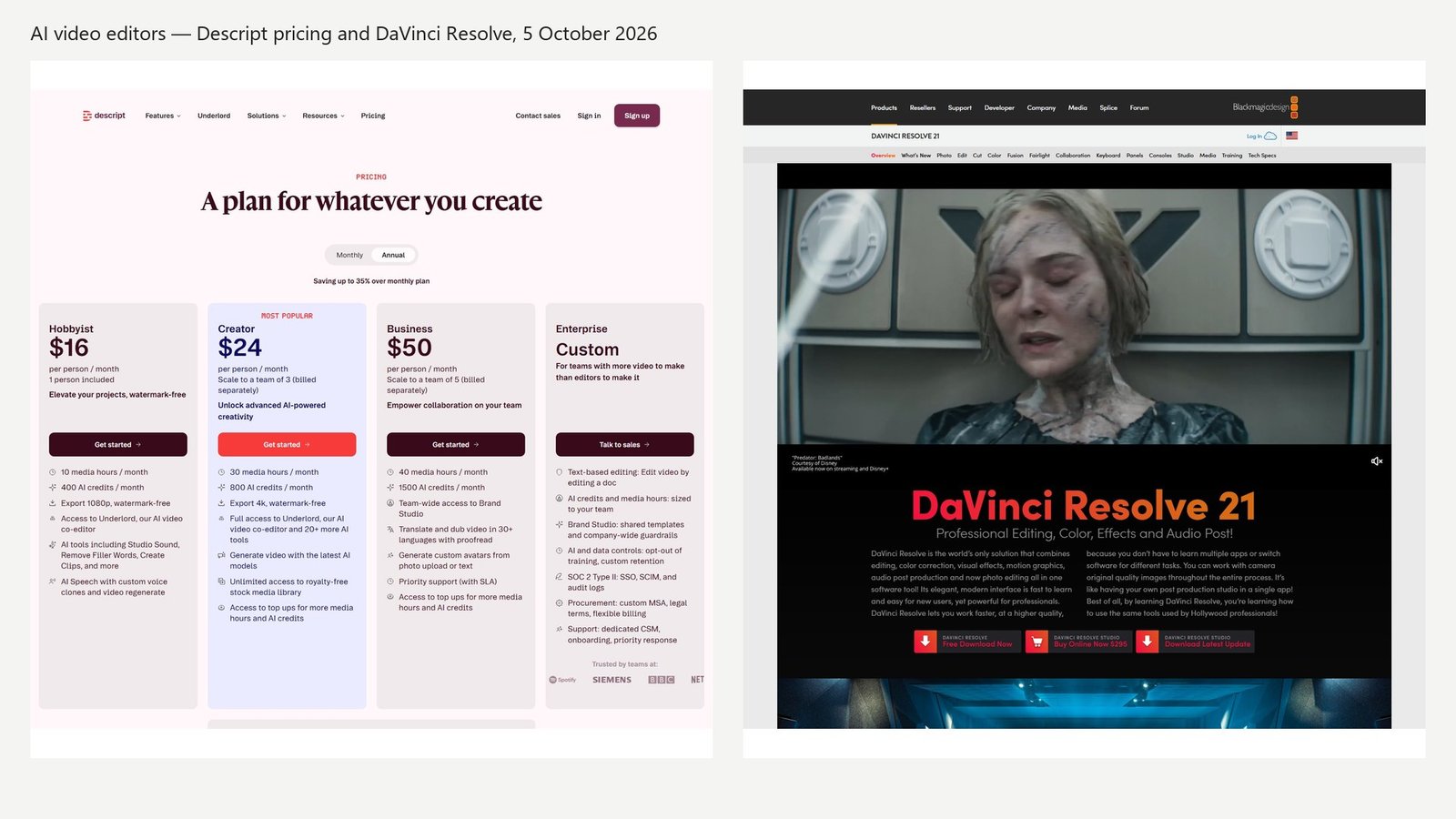
- Best overall for existing footage: Descript. The annual pricing view shows text-style editing, filler-word removal, and Studio Sound on the Hobbyist card at $16 per person per month.
- Best professional timeline: Adobe Premiere. Text-based editing trims the timeline when you edit the transcript. Generative Extend is a separate, paid Firefly feature.
- Best free professional editor: DaVinci Resolve. The Resolve 21 page offers a free download and Resolve Studio at $295 once. Studio AI is not included in the free download.
- Best browser editor: VEED. With yearly billing on, Creator is $10 per user per month, billed as $116 a year. Edit with Script is a paid transcript workflow.
- Best cross-device creator editor: CapCut. Desktop docs describe transcript cuts, filler review, and auto reframe. The public help center does not publish one fixed US dollar price.
- Best printed desktop price: Filmora. A US-locale shop view showed Advanced at US$29.99 per year with 1,000 AI credits a month. Those credits are Filmora’s meter, not anyone else’s.
Comparison table
Starting prices below are the figures visible on each vendor’s own page in this check. Annual amounts are labeled as billed annually. They are not month-to-month rates.
| Tool | Best for | Platform | Transcript editing | Auto cut | AI B-roll | Audio cleanup | Starting price |
|---|---|---|---|---|---|---|---|
| Descript | Talking-head and podcast cleanup | Desktop and web | Yes. Deleting words edits the video | Filler words; word-gap and retake tools are plan-limited | Royalty-free stock, not generated B-roll | Studio Sound, billed in AI credits | $16/person/month on the annual view |
| Adobe Premiere | Full timeline plus transcript cuts | Desktop | Yes. Transcript edits trim the sequence | Pause detection; bulk delete of uh and umm | Not the basis of this rank | Timeline audio is included. This check does not score a denoise | Single-app price did not load |
| DaVinci Resolve | Color, Fairlight, and finishing | Desktop | Studio materials add text tools; not claimed for the free app | Not claimed as one-click auto edit | Not claimed | Audio post is in the app. Voice isolation is a Studio tool | Free download; Studio $295 once |
| VEED | Browser edits and captions | Web | Yes, on paid plans | Filler words and silences inside Edit with Script | Not documented here as generated B-roll | Catalog listed; no quality score | $10/user/month, billed yearly at $116 |
| CapCut | Social reframing of a real timeline | Desktop, with web and mobile apps | Yes on desktop docs | Filler words after you review them | Not classified as generated B-roll here | Not scored | Shown at checkout; varies |
| Filmora | Desktop editing on a low annual plan | Windows and Mac | Listed as an AI-credit feature | Smart Scene Cut is credit-based | Not called generated B-roll | AI music and sound effects spend credits | Basic US$9.99/month; Advanced US$29.99/year |
AI feature table
| Tool | Silence or filler removal | Auto reframe | Translation or dubbing | Generative editing | Max export named |
|---|---|---|---|---|---|
| Descript | Fillers include um, ah, like, and repeats. Shorten Word Gaps is listed, Limited on a lower column | Center Active Speaker recenters a person. It does not generate video | Caption translation in 61 languages. Audio dubbing in 30. Business card says translate and dub | Generate video and avatars exist. They are not why it ranks | 1080p Hobbyist; 4K Creator and Business, local |
| Adobe Premiere | Help topics cover pauses, and uh or umm | A reframe crops existing frames. It is not Generative Extend | Translate Video is a Firefly feature, separate from captions | Generative Extend adds up to 2 seconds of video or 10 seconds of audio, start or end, not both | Sequence settings, not an AI upscale |
| DaVinci Resolve | Not claimed for the free download | Smart Reframe is described with Studio’s Neural Engine | Not claimed from the page we captured | Not claimed from the hero we captured | Not stated as an AI upscale on the page we captured |
| VEED | Delete Silences uses a duration control. A separate tool cuts only complete silence | Not verified as generative video | Pro and Studio cards say translate to 50+ languages. AI voice hours are a separate line | Gen-AI Studio is listed. Ranking uses the editor | Not stated as 4K on the cards we captured |
| CapCut | Identify filter words, then you delete or adjust | Auto Reframe sets ratio, stabilization, and camera speed | Not treated as lip-synced dubbing here | Not the ranking basis | Export dialog lists resolution, codec, and frame rate |
| Filmora | Speech-to-text is listed. Filler cleanup is not given a separate accuracy claim | Marked Free on the paid columns in the shop table | AI Translation and AI Voice Cloning are credit features, and they are not the same feature | Video Extend is named as a credit feature. The frame method is not defined on the shop table | 4K on the paid cards we saw |
How we chose the best AI video editors
US results for “best AI video editors,” “AI video editor,” and the YouTube, social, online, and transcript variants mix three real products: full editors with AI assists, transcript editors, and browser editors. Professional names such as Premiere and DaVinci Resolve appear beside creator apps. Clip-makers and text-to-video tools show up nearby. They answer a different question.
A finalist had to edit existing video in a meaningful way. Useful signals were a real timeline, transcript cuts that change the picture, silence or filler removal, captions, reframing, audio cleanup, or a documented generative edit such as extending a clip. Captions alone, a text-to-video model, an avatar, or a long-to-short clipper did not qualify.
Opus Clip and similar clippers belong with AI video repurposing tools. Runway and other prompt-to-video models belong with AI video generators. Riverside is a strong recorder, and that recording stack was not enough to rank it as a general editor here. Caption-only tools, and creator apps that only generate ads or avatars, stayed off the list. No Moon Picke affiliate was added to fill a slot.
We did not award numeric scores. Category picks name the job a tool is built for. A transcript editor can be the right choice for an interview and the wrong choice for a graded commercial.
What is an AI video editor?
An AI video editor imports a recording and helps you change it. The help may be a transcript you can delete, a pass that marks silence, captions with word timing, a reframe that follows a face, noise reduction, or a short stretch of generated frames at the head or tail of a clip. You still decide the story.
“AI edits your video automatically” usually means one of those jobs, not all of them. One product removes ums. Another builds a rough stringout from a script. Another only burns captions. Read the verb. If the page does not say the picture is cut, do not assume the picture is cut.
AI video editor vs AI video generator
A generator turns a prompt, a script, or a still image into new footage. An editor starts with a file you already shot. Several companies sell both. Descript’s Creator card includes “Generate video with the latest AI models.” VEED’s cards mention Gen-AI Studio. Filmora lists AI Idea to Video and Image to Video as credit features. Those generators can sit inside an editor. This article ranks the editing path: import, cut, clean, caption, export.
If the job is “make a clip from a sentence,” use a generator guide. If the job is “make this interview shorter,” you are in the right article. Overlap is fine. The ranking criterion is the footage you already have.
AI video editor vs video repurposing tool
Repurposing starts with a long video and tries to return short clips. Editing may include a rough cut, a timeline, silence removal, B-roll, audio, captions, and translation, and still end as one master. Descript can make clips. That clip step is optional. The product still qualifies because you can edit the source by editing the words.
A tool whose main output is a folder of vertical clips is a repurposer even if it also removes filler words. That work is covered in the repurposing guide. Exporting 9:16 from an editor is a frame-size choice. It is not, by itself, direct publishing to TikTok.
Transcript editing vs traditional timeline editing
Transcript editing is a strong fit for talking heads, podcasts, interviews, and webinars. You read the words, delete a false start, and the matching picture and sound go with them. Descript is built around that. Premiere’s Text-Based Editing help says the same thing in a professional timeline: when you select and rearrange text, related clips are trimmed on the timeline. VEED’s Edit with Script help says deleting a word removes the matching footage and restoring the text brings it back. CapCut’s desktop guide says deleting transcript text deletes the corresponding video.
A transcript is not a full finishing suite. It does not automatically give you multicam switching, keyframed graphics, color grading, or a mix with buses and plugins. Premiere and Resolve are timelines first. Descript, VEED, and CapCut are faster when the video is mostly a person talking. Neither approach is automatically better. Match the interface to the footage.
1. Descript: best for editing talking footage from the transcript
Descript made the list because the edit and the transcript are the same surface. With Annual selected on 5 October 2026, Hobbyist was $16 per person per month, Creator $24, and Business $50. The page also prints $24, $35, and $65 beside those amounts, and it says you save up to 35% over monthly. The lower figure is the annual view. It is not a month-to-month price. Hobbyist includes 10 media hours, 400 AI credits, 1080p watermark-free export, Underlord, Studio Sound, Remove Filler Words, Create Clips, and AI Speech with voice clones. Creator is 30 hours, 800 credits, 4K, video generation, and unlimited royalty-free stock. Business is 40 hours, 1,500 credits, Brand Studio, and translate-and-dub in 30+ languages. The free plan is $0 with no card, 60 media minutes, and 720p local export.
Filler removal targets “um,” “ah,” “like,” repeated words, and more. That list is not every language. Shorten Word Gaps and Remove Retakes are separate rows, and both are marked Limited on lower tiers. Speaker detection for 8+ speakers is not Automatic Multicam, which is the row for layouts and cameras. Center Active Speaker recenters a person. It does not generate a new shot. The pricing FAQ says AI credits cover Underlord, Studio Sound, Green Screen, Eye Contact, and generated media. A Descript credit is not a VEED or Filmora credit.
Transcription on the comparison is 25 languages. Caption translation is 61 languages. Audio dubbing is 30. The Business “translate and dub” line is the dubbing list, not the caption list, and the page does not describe lip sync. Lower plans limit stock search to the first 5 or first 12 results. Creator’s unlimited library is still stock, not generated B-roll. After the AI Speech limit, Descript says regenerated speech plays “jibber” “jabber.” Descript is not Resolve’s color page or Premiere’s interchange timeline. Video generation is on the Creator card, and it is not why Descript is first.
Best for: interviews, YouTube talking heads, and podcasts you want to cut by deleting words.
Skip if: the job is a graded, plugin-heavy timeline and the transcript is only a caption file.
2. Adobe Premiere: best professional editor with text-based cutting
Premiere is a desktop non-linear editor, and Text-Based Editing is part of it. Adobe’s help says rearranging transcript text trims the matching clips on the timeline. The same page covers bulk-deleting uh and umm, and deleting one speaker’s dialogue. A separate topic covers pause detection. Adobe calls the transcription “industry-standard.” That is Adobe’s phrase, not a Moon Picke accuracy score. Tracks, color, multicam, Team Projects, and XML, AAF, EDL, or OMF interchange stay in the timeline. The text panel does not replace them.
Generative Extend is a different tool. Firefly adds frames to the start or the end of a clip, not both at once. Video extends up to 2 seconds, audio up to 10, and the source must already be at least 2 seconds of video or 3 seconds of audio. The new clip is H.264 or WAV, the model runs in the cloud, and you can regenerate or revert. Adobe’s credits FAQ prices it at 125 credits per second for 1080p at 30 fps and 175 for 4K at 30 fps. Premiere 25.2 and later shows the tool to people without premium access, with complimentary tries. A reframe repositions existing frames. A 4K sequence export is not AI upscaling.
Adobe’s Premiere plans page errored during this check, so there is no single-app price here, and third-party prices are not used. Account help lists Creative Cloud Standard at $54.99 per month and Creative Cloud Pro at $69.99 per month on an annual contract billed monthly. Those are all-apps plans. Text-based editing is included with Premiere. It is not a free editor. Generative Extend needs premium Firefly access or the short complimentary allowance. An extended clip also does not travel cleanly through every multicam or interchange path. Read Adobe’s limits before you extend a shot you still need to round-trip.
Best for: editors who already finish on a timeline and want transcripts, pause cuts, and optional two-second generative handles.
Skip if: you need a published Premiere-only price today, or you only want a browser tab.
3. DaVinci Resolve: best free professional editor, with Studio AI at $295
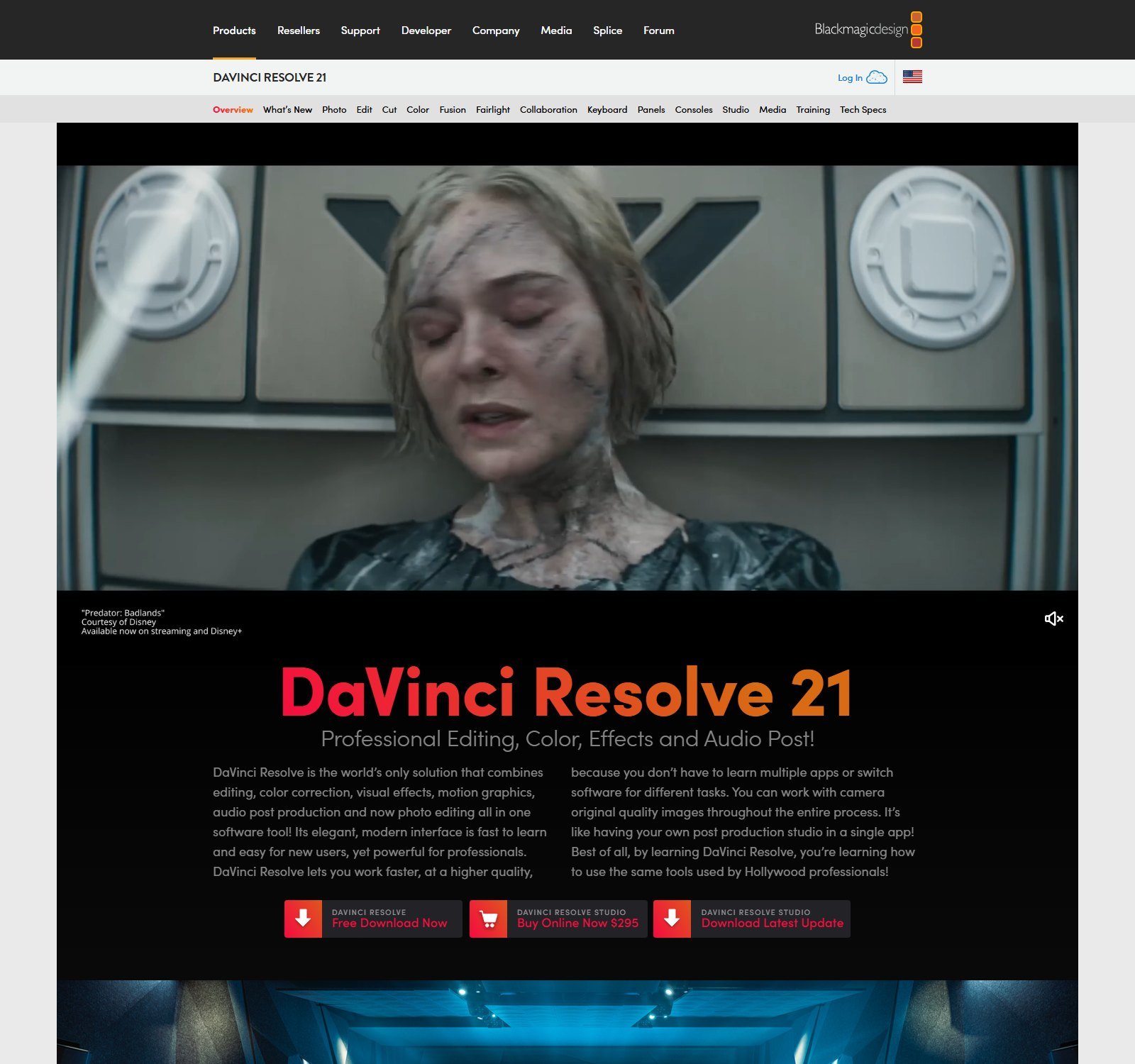
Resolve 21’s own page is the pricing source. One button is “DaVinci Resolve — Free Download Now.” The next is “DaVinci Resolve Studio — Buy Online Now $295.” A third downloads the Studio updater. The page describes one application for editing, color, effects, and audio. That $295 figure is a one-time Studio purchase on the button we captured. It is not a monthly subscription, and it should not be rewritten as “$295 per month.”
The free download is a real editor. It is not a trial watermark on a timeline. It is also not a promise that every Neural Engine tool is free. Blackmagic sells Studio separately because features such as Magic Mask, object removal, voice isolation, and smart reframe are Studio tools in Blackmagic’s Studio and feature-comparison materials. This article does not move those tools onto the free app. Smart Reframe tracks a subject into a new aspect ratio. It does not generate a new scene. Voice isolation is audio. It is not a claim of studio-quality sound.
Resolve is the pick when the cut needs color management, Fairlight mixing, and delivery more than a transcript-first cleanup. Collaboration through Blackmagic Cloud is a separate product choice. Having a local project on disk is not the same thing as a shared review room. The page we captured does not show a direct TikTok publish button.
Best for: a free professional timeline, and a one-time Studio license when you need the Neural Engine tools.
Skip if: you want filler-word removal in a browser and you will not learn a full editor.
4. VEED: best browser editor for transcript cuts and captions
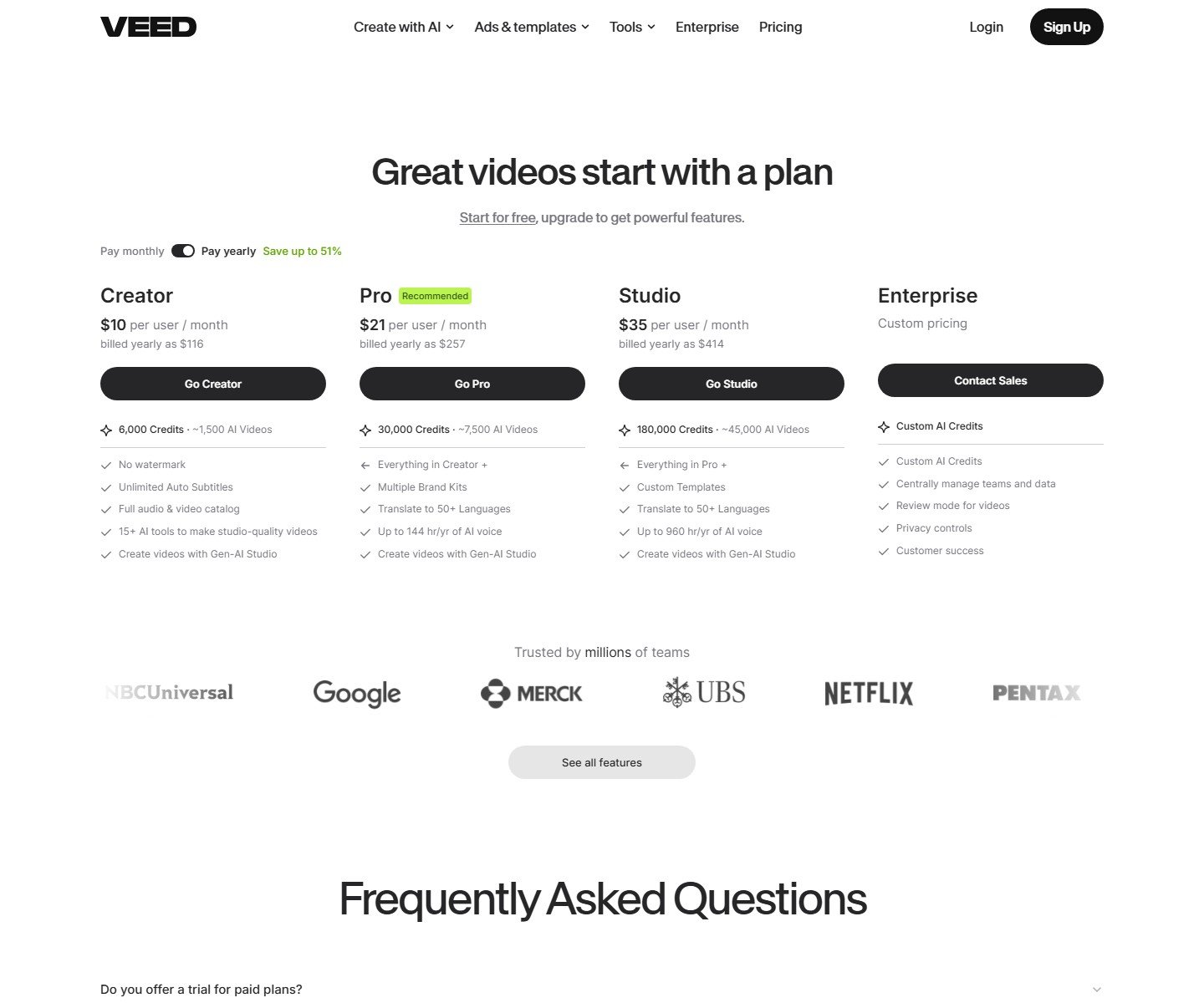
VEED is a web editor. You upload media. This check does not claim the AI runs as a local model. On the yearly toggle, Creator is $10 per user per month billed as $116 a year, with 6,000 credits, no watermark, and unlimited auto subtitles. Pro is $21 billed as $257, with 30,000 credits, translation to 50+ languages, and up to 144 hours a year of AI voice. Studio is $35 billed as $414, with 180,000 credits and up to 960 voice hours. The “~1,500 AI Videos” lines are VEED’s card estimates, not our benchmark. Monthly prices were not the toggle we captured. VEED credits are not Descript or Filmora credits.
Edit with Script is on paid plans. Deleting a word deletes the matching footage, and restoring the text puts it back. Delete Silences uses a slider. VEED says that transcript edit does not spend credits. Credits are spent when you add subtitles. A separate tool removes only complete silence, closes the gap, and ignores breathing or noise. Free accounts get one try. Too many silences can make it fail, and VEED’s help says to split the file. Eye Contact is the same one-try pattern, and it skips a look that is too far off camera. Translation to 50+ languages is not a lip-synced dub. AI voice hours are a separate line. Gen-AI Studio did not decide this rank.
Best for: a team that wants captions, transcript cuts, and silence removal in a browser.
Skip if: you need a local project, a one-time desktop license, or a documented multicam switcher.
5. CapCut: best when the same footage has to fit a phone frame
CapCut’s desktop editor is a timeline. Its transcript guide says deleting text deletes the matching video. The filler guide says you generate auto captions, turn on Identify filter words, and then delete or adjust each highlight. Named examples are um, uh, like, and you know. A highlighted “like” is sometimes a real word, so review it. Auto Reframe is a Video-panel control for aspect ratio, stabilization, and camera speed. CapCut’s FAQ says this repositions the existing picture. It is not generative video, and the page says it is available in specific regions. A one-click share mentioned there is not proof that every export publishes itself.
CapCut’s help center shows the price on the payment page and says it varies by region, platform, and tax. A March 2026 article says the old price is gone for new subscribers and describes Standard and an upgraded Pro. This article does not print a dollar amount we did not capture at a US checkout. Overdub, typing a fix so CapCut replaces that audio, is voice replacement, not a full-video dub. The transcript steps are the desktop workflow. Web and mobile apps exist. This check does not claim every desktop control is on the phone.
Best for: creators who already cut on a timeline and need a reviewed filler pass plus a reframe.
Skip if: you need a price you can compare in dollars before you open a checkout.
6. Filmora: best low annual desktop plan with a separate AI-credit meter
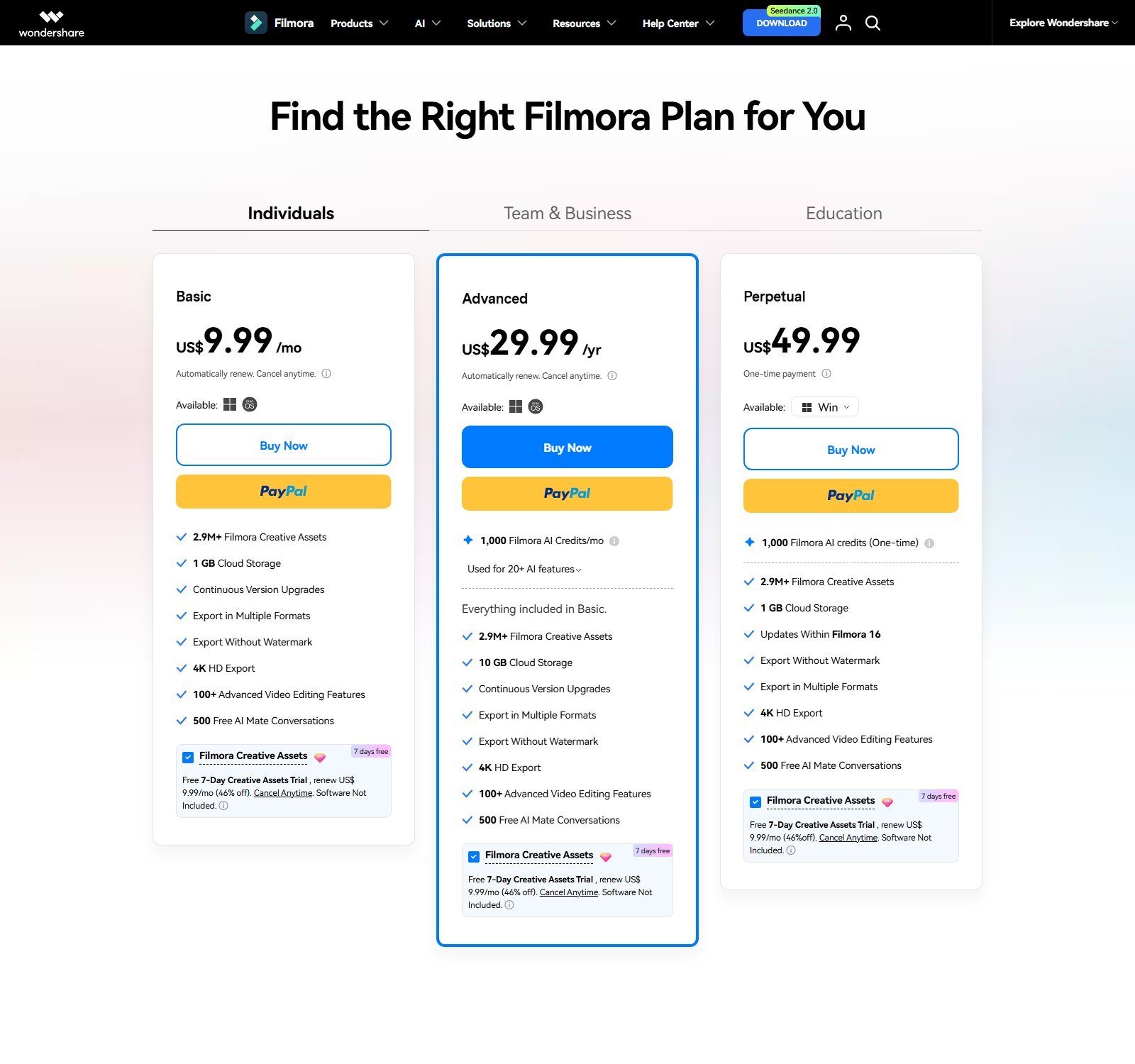
Filmora is a Windows and Mac timeline. The shop also describes multi-camera editing as cutting several angles on one timeline. That is manual assembly, not automatic speaker switching. In the US-locale view we captured, Basic was US$9.99 per month, Advanced US$29.99 per year, and Perpetual US$49.99 once. Basic includes watermark-free 4K export and 1 GB of cloud, not the credit grant. Advanced adds 1,000 AI credits a month for 20+ AI features and 10 GB of cloud. Perpetual is 1,000 credits once, 1 GB of cloud, and updates within Filmora 16 only. A subscription license covers Windows and Mac. A perpetual license is tied to the system you buy.
The free edition exports with a watermark. Subscription credits reset every 30 days. They are not Descript credits. The shop table bills AI Text Based Editing, AI Object Remover, Video Extend, AI Translation, and AI Voice Cloning to credits, and marks Auto Reframe Free on the paid columns shown. Video Extend is only a name on that table, so it is not described here as generated frames. Speech-to-text is 27 languages in the FAQ. Text-to-speech is 28. Translation and voice cloning are separate rows, and none of them is lip sync. Creative Assets are a stock library, not a blanket ad license.
Best for: a desktop timeline at a published annual price, with AI tools on a credit meter you can see.
Skip if: you need transcript editing that is included without credits, or a browser project.
Which tool wins which editing job
Premiere wins professional finishing when the transcript has to live on a delivery timeline. Resolve wins when the free editor is the point and Studio’s Neural Engine tools are worth $295 once. Descript wins podcasts and talk-heavy YouTube. VEED is that workflow in a browser. CapCut wins a social reframe of footage you already cut. Premiere’s Generative Extend is the only generative handle here with a documented length, a cloud requirement, and a per-second credit price. Filmora’s Video Extend is only a credit-table name.
Beginners who want a printed desktop price start with Filmora. Beginners who would rather delete sentences start with Descript’s 60-minute free plan. The strongest free editor is Resolve’s download, and its Neural Engine tools are not in that download. VEED’s free plan is a one-time try of silence removal and eye contact. Filmora’s free export is watermarked. Free timeline access is not free AI.
Pricing and what you actually get
Do not convert these plans into a cost per video. The workload is too variable. The comparable facts are the entry price, whether AI is included, and what the meter buys. Descript’s annual view is $16, $24, or $50 per person per month, against monthly figures of $24, $35, and $65, with cloud storage of 5 GB, 100 GB, 1 TB, and 2 TB on the four comparison columns. Premiere’s single-app price did not load. Creative Cloud Standard at $54.99 and Pro at $69.99 are all-apps prices, billed monthly on an annual contract. Resolve Studio is $295 once. VEED’s yearly bills are $116, $257, and $414. CapCut’s price is at checkout. Filmora Advanced is US$29.99 a year for 1,000 credits that reset every 30 days. Credits from one company do not equal credits from another.
Your footage rights are yours to clear. An import button does not license a clip, a song, or a person’s face. Descript’s stock row is a royalty-free library with search caps on lower plans. Filmora’s creative assets are a separate library. Generated Premiere frames follow Firefly’s terms. This article does not call any catalog copyright-free, and it does not say you own every model output outright.
How to choose an AI video editor
Start from the footage. If it is one or two people talking, start with Descript, VEED, or CapCut’s transcript. If it is a multicam show, a graded spot, or a project that must leave as XML or AAF, start with Premiere or Resolve. If the team will not install software, VEED is the browser option with a price on the page. If someone needs a cheap desktop license and can spend credits on AI tools, Filmora’s Advanced card is the printed annual offer. If the next step is only a vertical crop, CapCut’s Auto Reframe is the documented path, and you will see the price at checkout.
Then check four limits before you subscribe. Where does the file have to upload? Which AI actions spend credits? Is dubbing included, or only translated subtitles? Does the free plan export without a watermark? Those four answers change the real cost more than a feature grid does.
How to edit a video with AI
- Import the footage you have rights to use.
- Keep the original files. AI cuts and generative handles should stay reversible.
- Transcribe. Confirm the language. Descript lists 25 transcription languages on the plans we checked. Filmora’s FAQ says 27 for speech-to-text.
- Build a rough cut from the words or from the timeline.
- Remove obvious mistakes yourself before you accept a bulk delete.
- Review silence and filler suggestions. “Like” and a short pause are not always junk.
- Reframe only if the delivery frame changed. Check faces after the reframe.
- Add B-roll from your own shots or from a stock library the plan actually licenses. Do not label stock as generated video.
- Clean audio, then listen on headphones. A noise pass can dull a voice.
- Add captions and read them. Auto captions are a draft.
- Add titles and brand elements on the timeline.
- If you use Generative Extend or a voice regenerate, play the join.
- Fix names, speaker labels, and caption typos.
- Check that cuts do not flash a frame or clip a breath in a way you hate.
- Check audio across the cut for jumps in noise or level.
- Export the resolution the plan allows. 1080p export is not upscaling.
- Watch the exported file, not only the preview, before you publish.
Human review stays in the process. None of the tools above describe their auto cuts as finished editorial judgment.
Which AI editing features actually save time?
Transcription and text-based cuts save time when the video is speech. Silence and filler tools save a messy talking-head pass and cost time when you restore words. Captions still need a read. Auto reframe saves a one-person crop and fails more often with two people or a product on a table. Stock B-roll saves a search inside a library you already license. It does not invent a shot of your product. Caption translation, dubbing, and lip sync are three jobs. Speaker detection does not switch cameras. No time-saved percentage belongs here, because an interview and a commercial are not the same edit.
What AI video editors still get wrong
Bulk cuts land tight and remove a breath you needed. Captions miss names. Reframes crop a second person or a product on the table. Noise removal can dull a voice. Generative Extend can invent motion, which is why Premiere keeps Revert to Original. Credits run out, uploads dominate long files, and a browser editor stops without a connection. A transcript editor does not become a color and mix suite. These are types of failure, not measured rates. Keep the original, accept suggestions in small batches, and watch the export.
FAQ
What is the best AI video editor?
For footage you already shot, especially someone talking, Descript is the best match on this list. Premiere is the better professional timeline. Resolve is the better free professional editor. The right pick depends on whether you edit words, tracks, or a phone frame.
Can AI edit videos automatically?
It can apply a defined pass: delete listed filler words, cut silences over a threshold, or build captions. That is not a finished edit. Descript marks some of those passes as Limited on lower plans. VEED will not remove silence that still contains noise. You still review the cut.
What is the best AI video editor for beginners?
Filmora if you want a desktop app with a price on the page. CapCut if you want transcript cuts and auto reframe and can accept a checkout price. Descript if you would rather delete sentences than drag clips, starting with 60 free media minutes.
What is the best AI video editor for YouTube?
Talking-head channels get the most from Descript or VEED. Channels that grade, mix, or cut multiple cameras get more from Premiere or Resolve. A vertical export does not publish the video for you.
Which AI video editor is best for podcasts?
Descript. The comparison lists filler removal, retake tools, speaker detection, Studio Sound, and multitrack transcription. Premiere can delete one speaker from a transcript if you are already editing there. A clipper that only returns Shorts is a different workflow.
Can AI remove silence and filler words?
Yes, in specific tools. Descript removes um, ah, like, and repeats, and shortens word gaps with a Limited flag on a lower tier. VEED can delete pauses from the transcript or strip complete silences. CapCut highlights filter words for you to accept. None of them claims every disfluency in every language.
Can AI edit video from a transcript?
Yes. Descript, Premiere, VEED’s paid Edit with Script, and CapCut’s desktop transcript all document that deleting text changes the video. That is still not a full finishing suite.
Can AI automatically add B-roll?
Descript can place B-roll in a Quick Design layout and offers a royalty-free stock library. That is stock and layout, not a generated shot of your product. Do not buy an editor because a page says “AI B-roll” until you know whether the picture is searched, selected, or generated.
Can AI clean up video audio?
Descript’s Studio Sound and Resolve Studio’s voice isolation are the documented tools on this list. VEED’s silence remover is a cut, not a denoise. Listen to the result. “Studio quality” on a marketing line is not a measurement.
Can AI translate and dub a video?
Those are different steps. Descript transcribes in 25 languages, translates captions in 61, and dubs audio in 30. The Business card is the plan that says translate and dub. VEED’s Pro card says translate to 50+ languages and lists AI voice hours separately. This research did not find lip sync on those pricing lines. Subtitles are not a dub.
What is the best free AI video editor?
DaVinci Resolve’s free download is the best free editor here. Its Studio AI tools cost $295 once. Descript’s free plan edits text for 60 minutes a month at 720p. Free access to the timeline is not free access to every generative or audio model.
Can AI replace a professional video editor?
No. AI can speed up transcription, tightens, captions, reframes, and some audio or frame-extension work. It does not replace taste, story structure, pacing, brand choices, complex compositing, a detailed mix, or quality control. A professional editor using these tools is the realistic outcome. An unreviewed auto cut is not a finished video.
Final verdict
Buy Descript if the footage is people talking and you want the transcript to be the edit. Buy Premiere if you already finish in a professional timeline and want those transcript cuts plus an optional, metered Generative Extend. Download Resolve if you want a free professional editor, and pay $295 for Studio only when you need the Neural Engine tools. Use VEED if the work has to stay in a browser. Use CapCut when reframing a real timeline for social is the main AI job, and check the checkout price. Use Filmora’s Advanced plan if you want a desktop editor at US$29.99 a year and you understand that the AI tools spend a separate credit balance.
The tools that generate a video from a prompt, or that only slice a long video into clips, solve other problems. They are not ranked here. Whatever you pick, keep the camera original, accept AI changes in passes you can undo, and watch the file you actually export.