
Moon Picke independently researches products. If you buy through our links, we may earn a commission at no extra cost to you. Read our affiliate disclosure.
This home office buying guide is for people building or upgrading a practical workstation—not for anyone who thinks a good setup means buying every accessory on a list. Start with chair, desk, and display fit. Add lighting and power next. Treat printers, scanners, monitor arms, and walking pads as workflow tools, not mandatory essentials. The guide follows actual buying decisions: fit, workflow, space, connectivity, budget, and upgrade order.
Moon Picke used OSHA’s computer-workstation eTool (chairs, monitors, and working positions) and Cornell University’s CUergo workstation guidelines for positioning ranges. Product pages in this cluster stay in the linked reviews. We did not run a home-office lab, measure your room, or assess your posture.
As an Amazon Associate I earn from qualifying purchases.
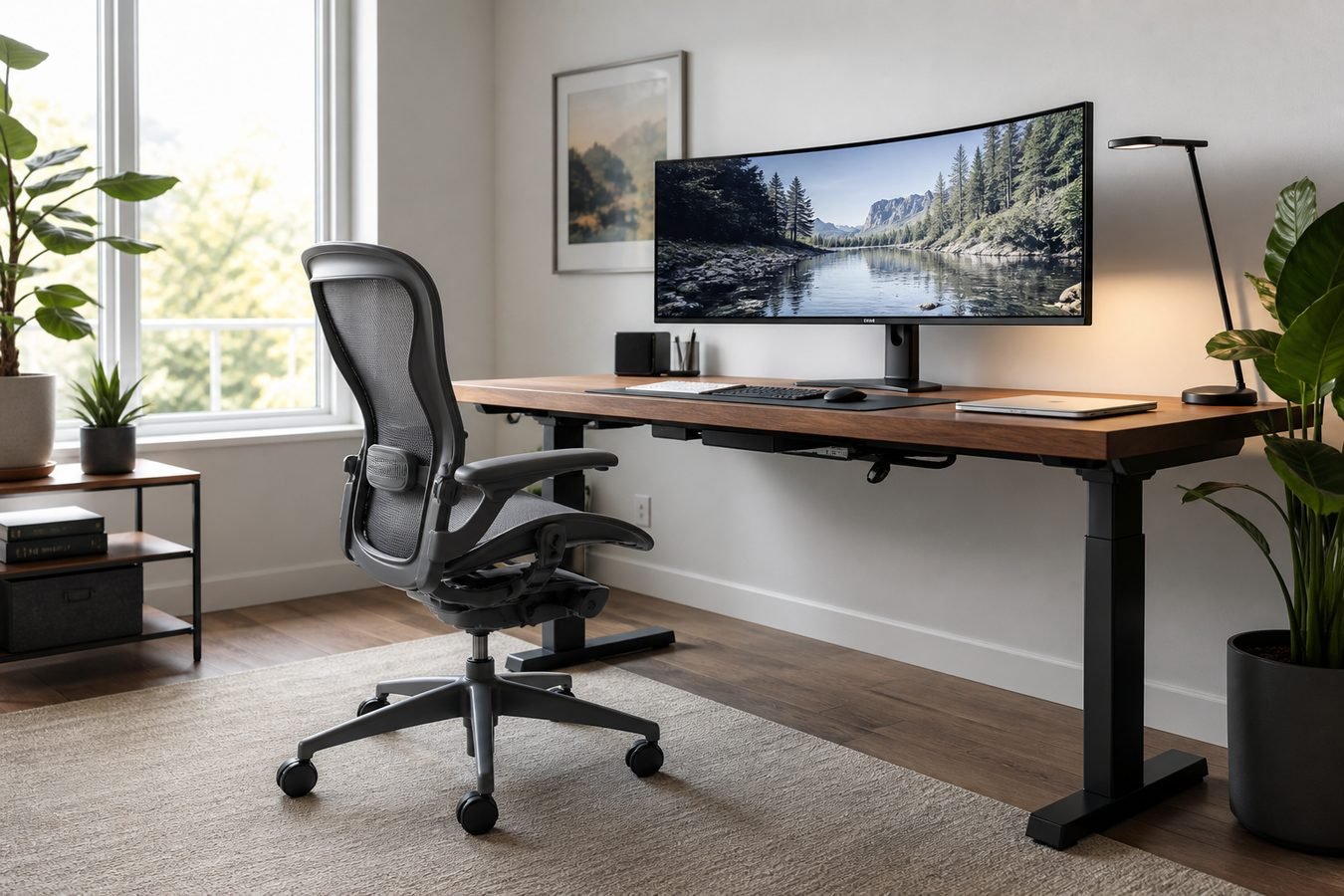
Home Office Buying Guide: The Short Version
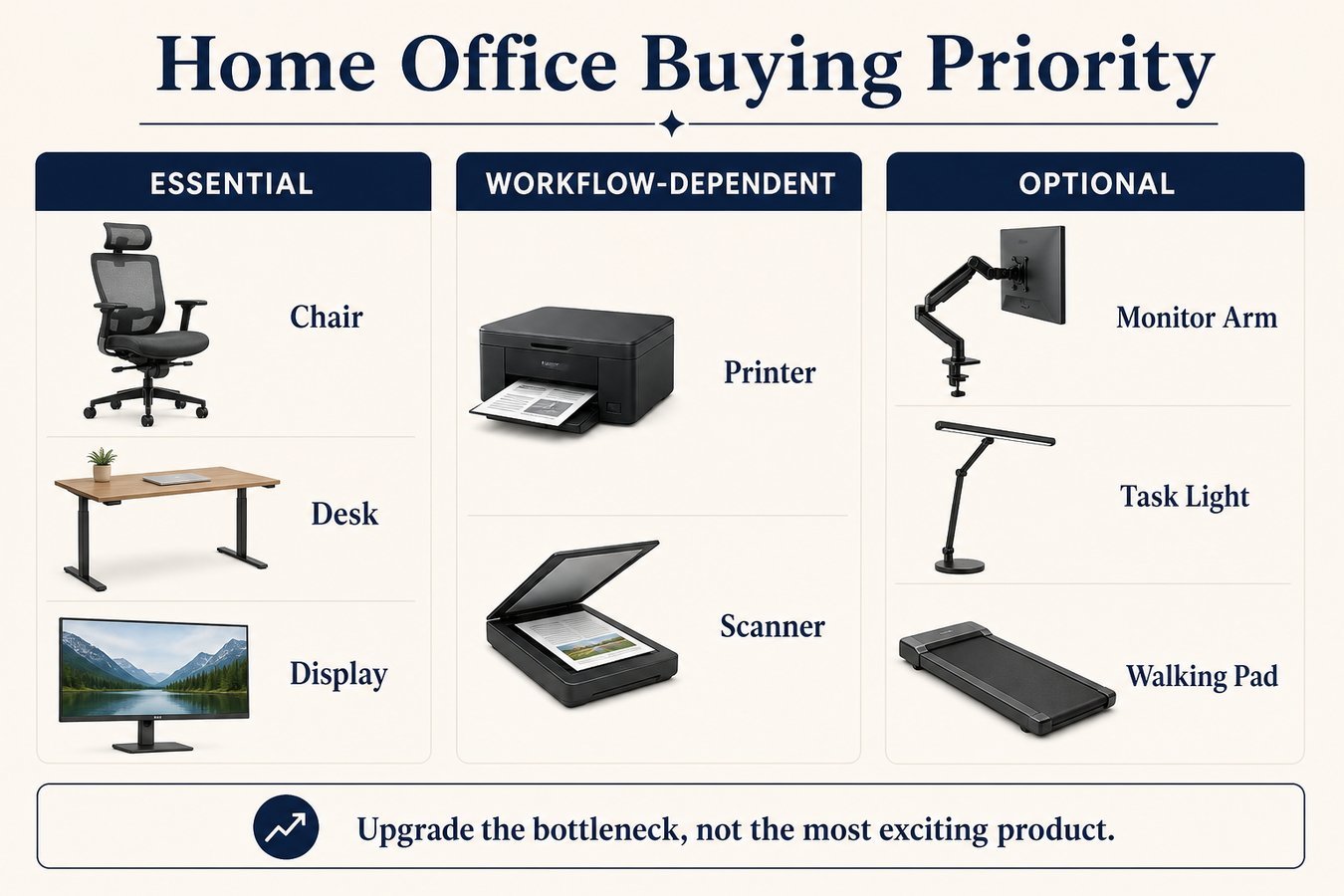
What do you actually need for a home office? Less than a shopping roundup implies. This home office buying guide ranks purchases by hours of use, not by how premium they look.
Priority 1 — Chair + desk fit. If the seat, desk height, and knee space are wrong, a better monitor will not fix the day. Spend here first when you sit for hours.
Priority 2 — Display positioning. One good screen at a usable distance beats two screens crammed onto a shallow desk.
Priority 3 — Lighting + connectivity. Task light on paper, room light that does not wash the screen, and outlets that can actually reach the gear.
Workflow-dependent: an all-in-one printer when you print and scan; a dedicated document scanner when capture volume is the job.
Optional: a monitor arm, premium lamp, or walking pad after the foundation works. None of these is a home-office essential.
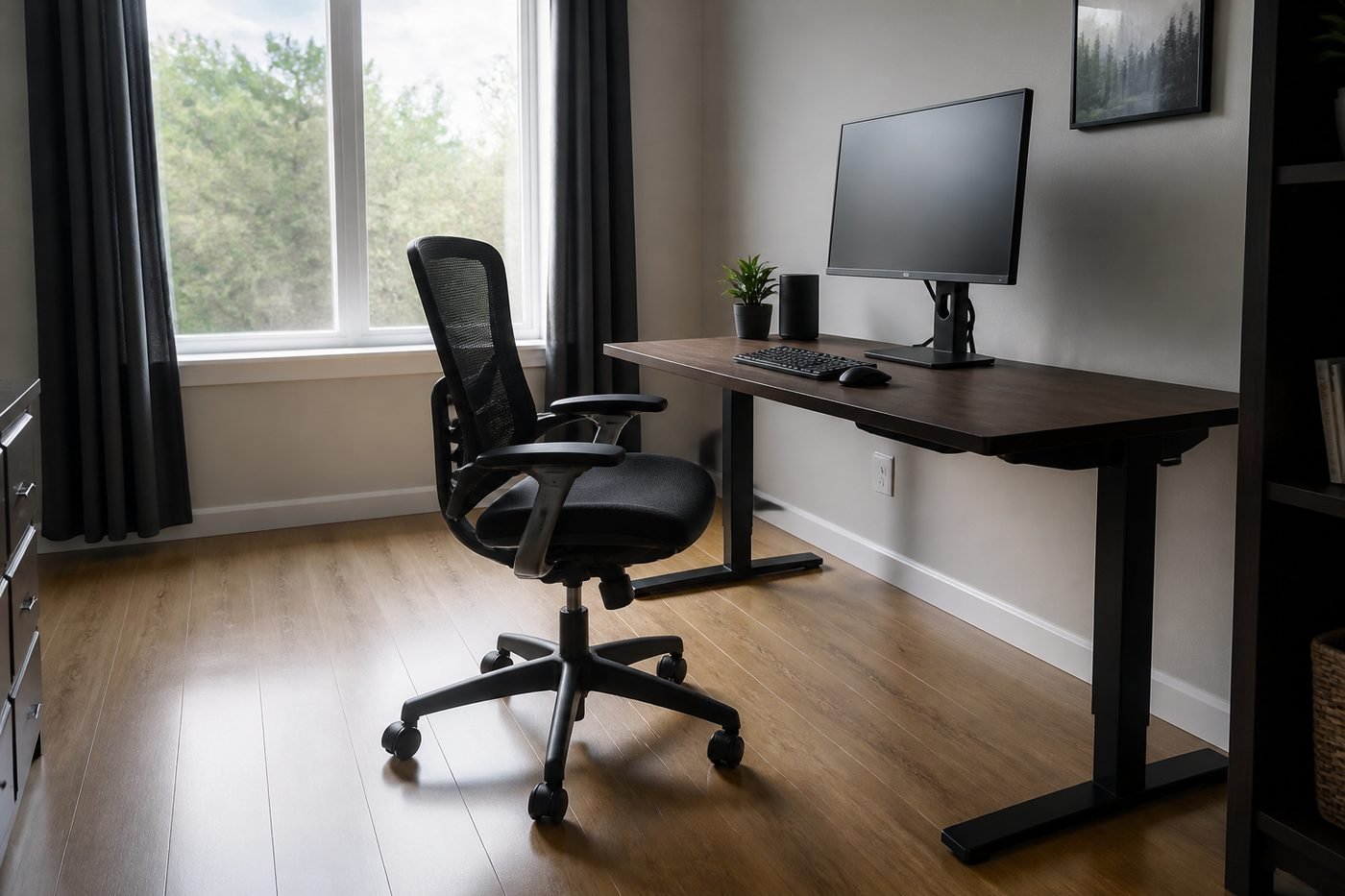
60×30 standing-desk
Fixed Desk vs Standing Desk
- Setup: Best For
- Single monitor: simple workflows
- Ultrawide: continuous multitasking canvas
Affiliate link. Moon Picke may earn a commission from qualifying purchases.
ultrawide
Monitor Setup: One Screen, Ultrawide or Dual Monitors?
- Setup: Best For
- Single monitor: simple workflows
- Ultrawide: continuous multitasking canvas
Affiliate link. Moon Picke may earn a commission from qualifying purchases.
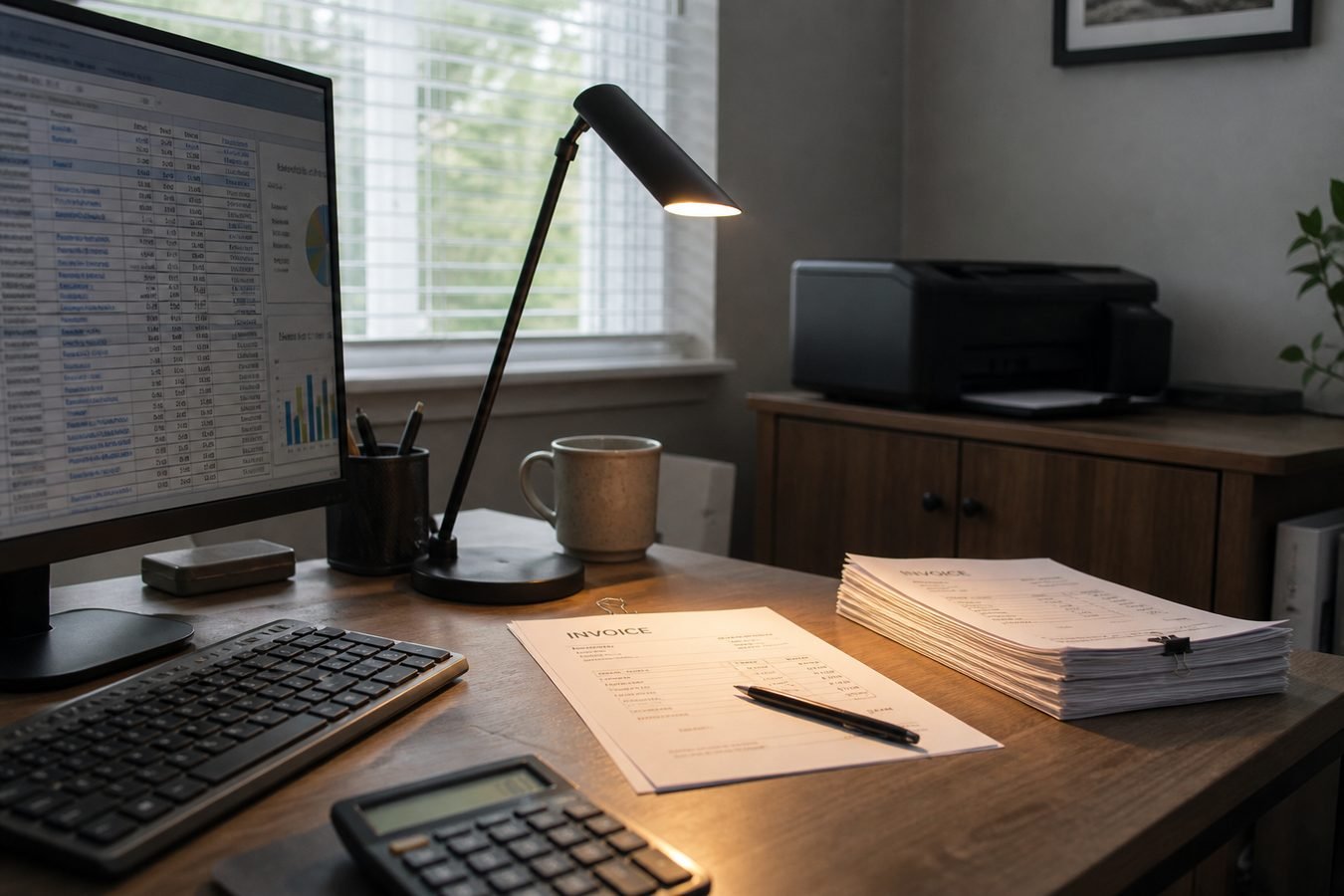
office all-in-one
Dedicated Document Scanner
- Recommendation context documented in the article
- Relevant use case covered in the guide
- Trade-offs discussed in the surrounding analysis
Affiliate link. Moon Picke may earn a commission from qualifying purchases.
Start With the Workspace, Not the Products
Product dimensions are not the same as operational clearance. A 60-inch desk still fails if the chair cannot roll, the door hits the hutch, or the only outlet is across the room. Measure room width and depth, wall runs, window glare, door swing, and storage before you shop. This home office buying guide treats the room as a constraint, not a backdrop.
Check desk width for screens and documents, and desk depth for viewing distance. OSHA’s monitor guidance generally prefers about 20 to 40 inches from eyes to screen, which is a depth problem as much as a monitor-size problem. Leave floor space for the chair to move in and out. Note floor type for chair casters. Count outlets and whether a standing desk will need slack in every cable. A home office setup guide that skips the room will keep recommending products that do not fit.
Chair and Desk: The Foundation
Choosing the Chair
OSHA treats a well-adjusted chair as a core workstation part: lumbar support, a seat that lets feet rest flat (or on a footrest), armrests that keep shoulders relaxed, and a five-leg base with casters matched to the floor. Chair height is in range when the whole sole of the foot can rest on the floor and the back of the knee sits slightly higher than the seat. Seat depth should support most of the thigh without the front edge pressing the back of the knee. Armrests that sit too high shrug the shoulders; armrests that sit too wide pull the elbows out. OSHA also notes that hard, sharp armrests can irritate the forearm—padding and rounded edges matter if you rest there. Cornell notes that a slight recline around 100–110 degrees is often more sustainable than a rigid 90-degree “upright” pose. That is positioning advice, not a medical treatment. Fit still beats brand. Moon Picke’s Steelcase Gesture review is the cluster’s chair example: useful if the measurements match you, skippable if they do not.
Fixed Desk vs Standing Desk
Is a standing desk necessary? No. Standing capability helps only if the height range fits you, the top holds the load, and you will actually change positions. Cornell lists a typical writing surface around 28–30 inches for many adults; keyboard height is often different from writing height, which is why trays and adjustable desks exist. Width holds monitors and paper. Depth holds the screen at a usable distance. Load rating must cover monitors, arms, and speakers with margin. Sit-stand desks also need cable slack so the top can rise. Moon Picke’s Vari Electric Standing Desk 60×30 review covers an adjustable 60-by-30-inch example. A large storage desk such as the one in the Bestar Logan 66W review can be the better fit when filing, hutches, and a fixed footprint matter more than sit-stand travel. Width without depth still fails a home office desk setup: you can park two screens on a 60-inch top and still sit too close if the surface is shallow.
See a current 60×30 standing-desk listing on Amazon →
Monitor Setup: One Screen, Ultrawide or Dual Monitors?
Is an ultrawide monitor better than dual monitors? Neither is universally better. Size is not the same as resolution: a large low-resolution panel can look worse for text than a smaller dense one. Desk depth still has to support OSHA’s 20–40 inch viewing range and Cornell’s arm’s-length starting point. USB-C charging, KVM, and hub ports matter when one screen replaces a dock. Dual monitors create separate app zones and more stands, cables, and height matching.
| Setup | Best For | Main Trade-Off |
|---|---|---|
| Single monitor | simple workflows | less workspace |
| Ultrawide | continuous multitasking canvas | desk size / screen sharing |
| Dual monitors | separate app zones | more stands/cabling |
OSHA wants the monitor in front, top of the screen at or slightly below eye level, and the center typically 15–20 degrees below horizontal eye level. Place it perpendicular to windows when you can. Cornell’s quick check: sit back, extend an arm, and let fingers nearly meet the screen, then adjust. If text is small, enlarge it in software before sliding the chair closer. Moon Picke’s Dell UltraSharp U4025QW review is the cluster’s ultrawide path—not a default buy for every laptop desk.
See a current ultrawide listing on Amazon →
When a Monitor Arm Is Worth It
Do you need a monitor arm? Only if it solves a real constraint: reclaiming depth, matching sit-stand height, or getting the screen off a stack of books. Compatibility is two-sided. The monitor needs a VESA pattern and a weight inside the arm’s range. The desk needs a clampable edge or grommet and enough thickness, and the underside must be clear of drawers. A heavy ultrawide can exceed a light dual-arm kit. An arm on a thin top can crush the laminate. Confirm both sides before you buy; an arm that fits the screen but not the desk is not an upgrade.
Office Lighting That Actually Fits the Desk
An ergonomic home office setup still needs light that fits the desk, not a brighter bulb in the wrong place. Room light and task light do different jobs. Overhead fixtures wash a room; a desk lamp covers documents and the keyboard. OSHA notes that a monitor tilted back can pick up ceiling glare, and it recommends placing the screen perpendicular to windows. Cornell says you should not see bright glare on the panel, and a bright window behind or facing the screen can wash it out. Brightness should let you read paper without blasting the display. Color temperature is a preference match to the room, not a therapy setting. Aim the lamp at the blotter, not into the glass. A well-aimed lamp can improve coverage. It does not prevent eye strain.
Printing, Scanning and Paper Workflows
All-in-One Printer
Buy a printer-scanner when you still print and scan in the same week. Duplex printing, an ADF, and network or Wi-Fi matter more than a photo-lab claim. Purchase price is the smaller number; toner, drums, and paper are the ongoing cost. Moon Picke’s Brother MFC-L3780CDW review is the cluster’s mixed print/scan example. Skip a new MFC if the current inkjet already covers rare jobs.
Dedicated Document Scanner
A dedicated scanner is for volume: duplex, ADF, and searchable PDFs when digitizing invoices and contracts is the work. An all-in-one solves mixed print-plus-scan. A sheet-fed scanner solves stacks. They are not interchangeable upgrades. If you print little and scan a lot, the scanner can be the better spend. If you print daily and scan occasionally, the MFC is usually enough. Do not feed stapled, wet, or irreplaceable originals through an ADF. OCR quality still varies with print and layout, so searchable PDFs are a workflow aid, not a guarantee.
See a current office all-in-one listing on Amazon →
Should You Add a Walking Pad?
Is a walking pad worth adding? Only as an optional accessory after a height-adjustable desk already fits. Check standing-desk height against deck height so your wrists are not hiked on the keyboard. Belt width and length have to fit your stride and the desk opening. Noise, storage, and whether the task allows slow walking all matter more than a premium motor on paper. This is not a weight-loss device and not a home-office essential. Moon Picke’s LifeSpan TX6 review is the cluster’s under-desk example—useful if the desk, deck, and workflow line up; skippable if they do not.
See a current under-desk walking-pad listing on Amazon →
Cable Management and Power Planning
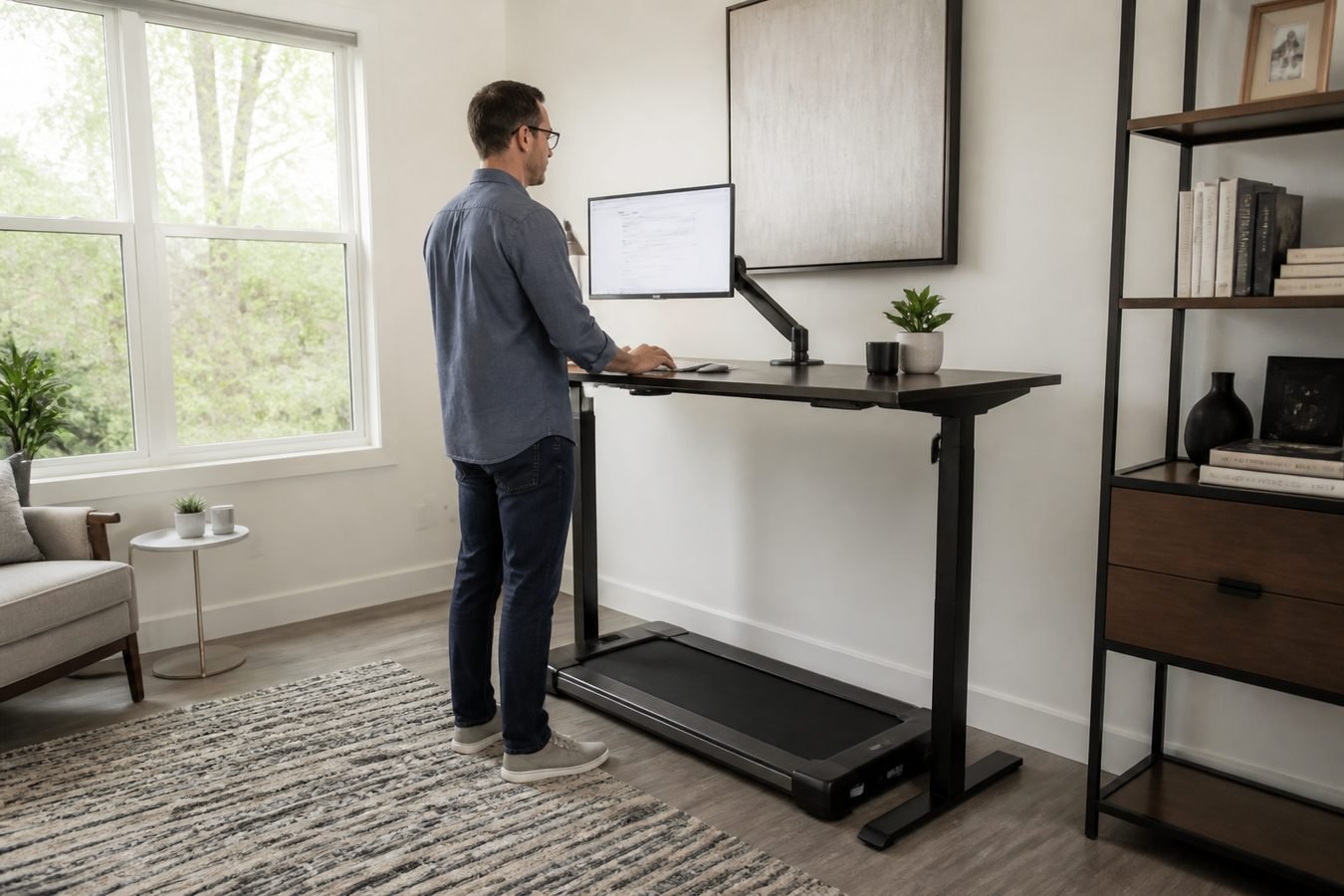
List every load: monitor, laptop brick or USB-C, printer, lamp, dock, speakers, and a walking pad if you add one. Use a surge-protected strip on the wall or in a cable tray—do not daisy-chain power strips. USB-C hubs reduce adapters only if the laptop can power the chain. Leave slack for standing-desk travel and for a monitor arm that swings. A loom that works at sitting height can yank a plug at standing height. Route cables so the chair does not roll over them. Keep printer and lamp on circuits that will not trip when the desk motors start. If you add an under-desk treadmill later, plan a dedicated outlet and a path that does not cross the belt. Power planning is unglamorous. It is why adjustable furniture either works or does not.
Home Office Setup by Workflow
Laptop-First Worker
Laptop-First Worker needs a fitting chair, a stable desk, and lighting you can control. An external display is optional until you live in spreadsheets or documents all day. Skip the walking pad and the production printer. Home office equipment for this profile is mostly fit, not extras.
Multi-Tasking Professional
Needs: more pixel workspace (ultrawide or dual), often a monitor arm, a deeper or wider desk, and cleaner USB-C or KVM connectivity. Premium glass is still optional if two ordinary screens already separate your apps.
Document-Heavy Small Business
Needs: print/scan hardware that matches volume, storage, and often Ethernet or reliable Wi-Fi. A dedicated scanner can outrank a nicer lamp. Consumables budget matters as much as the box price.
Premium Productivity Setup
May add a standing desk, ultrawide, arm, task light, and walking pad. That stack is not automatically a best home office setup. It is only better when each piece removes a bottleneck you already feel.
Where Should You Spend More — and Where Can You Save?
Spend more when the item is used for many hours, fit and adjustment range matter, and replacing it later would disrupt the room: chair, desk, and the primary monitor. Save or delay when the feature is optional, the workflow does not require it, or current gear already works: walking pad, premium lighting, a dedicated scanner for low-volume users, and a four-monitor arm for a one-laptop job. A printer’s box price can look reasonable while toner and drums dominate the year. Expensive is not the same as better. Illustrative order of operations beats a fake dollar budget that will not match your city or your used-market finds.
Home Office Buying Checklist
Use this home office buying checklist before you add to cart. It is the practical half of the home office buying guide: measurements first, catalogs second.
SPACE: room dimensions; desk width/depth; chair clearance; storage and door swing.
CHAIR: seat height; seat depth; armrests; lumbar/recline; caster/floor match.
DESK: height or lift range; width; depth; load; cable routing.
MONITOR: resolution vs size; connectivity; desk depth for 20–40 inch viewing.
MONITOR ARM: VESA; monitor weight; desk clamp/grommet.
LIGHTING: task coverage; glare; window placement.
PRINT/SCAN: workload; duplex; ADF; consumables.
WALKING PAD: desk height; belt size; deck height; storage; noise.
POWER: outlets; chargers; cable length for sit-stand; no daisy-chained strips.
What Should You Upgrade First?
What should you upgrade first? Fix obvious chair and desk fit. Then improve the primary display and how it sits. Then lighting and cables. Then print/scan gear that matches real volume. Then optional accessories. The point of a home office buying guide is sequence: upgrade the bottleneck, not the most exciting product. A walking pad on a wobbly table is the wrong order. A fourth monitor on a chair that does not fit is also the wrong order.
Final Thoughts
A strong home office buying guide ends on subtraction: the best setup is not the one with the most products. It is the one where the chair fits the user, the desk fits the user and the equipment, the monitor fits the workflow, lighting fits the desk, document hardware matches actual volume, and accessories solve problems you can name. Measure the room. Match the workflow. Spend on hours-per-day items. Leave the rest until a real constraint shows up.
FAQ
What are the most important home office essentials? A chair and desk that fit, then a display you can position, then lighting and power. Everything else depends on work.
Should I buy a standing desk? Only if the height range, depth, and load fit and you will change positions. It is not required for a work from home office setup.
Is an ultrawide monitor worth it for work? Yes for a single continuous canvas if the desk is deep enough. Dual monitors can be better for separate app zones.
Do I need a monitor arm? No, unless you need height/depth control the stand cannot provide and the desk and monitor are compatible.
Is a dedicated document scanner worth buying? Yes when scan volume, duplex, and ADF matter more than printing. No if an all-in-one already covers mixed jobs.
Is a walking pad useful for a home office? Sometimes, as an optional add-on to a standing desk. It is not an essential and it is not a health plan.
How deep should a home office desk be? Deep enough for OSHA’s roughly 20–40 inch viewing distance plus keyboard space. Many people need more depth for large or ultrawide screens.