
The useful question is narrower than “which AI video editor should I buy.” You already have a clip. The background is a room, a street, or a messy desk. You want a tool that isolates the person or the object and either drops that foreground over something else or hands you a file another editor can composite. That is an AI video background remover. It is not the same job as generating a new clip, upscaling an old one, or blurring a webcam.
This comparison looks at tools that accept an existing video and attempt subject segmentation without requiring a green screen. Six products cleared that gate on 5 October 2026: Beeble Background Remover, Fliki’s video background remover, After Effects with Next-Gen Roto Brush, DaVinci Resolve Studio Magic Mask, CapCut’s auto removal, and Canva’s Video Background Remover. Unscreen is not on the list. Canva’s help center says Unscreen.com closed as of 29 June 2026.
Moon Picke did not run the same clip through every tool. There is no mask-accuracy percentage, no hair score, and no processing-speed ranking. Official pages show what a vendor documents. They do not prove average edge quality. Where two Beeble pages disagree about credits or clip length, both wordings are quoted.
Quick picks
- Best overall for a documented alpha workflow: Beeble. MatAnyone is the no-green-screen model. CorridorKey is a separate green-screen keyer. Docs describe an alpha-embedded 10-bit MOV, a PNG sequence, and a grayscale matte.
- Best one-click creator path: Fliki. The feature page says it removes a background without a green screen and can export ProRes 4444, WebM with alpha, or a PNG sequence. Those names are Fliki’s claims. This article did not open a downloaded file.
- Best rotoscoping control: After Effects. Next-Gen Roto Brush is version 3.0. Refine Edge is documented for hair, with motion-blur compensation and edge decontamination. It is not a one-click website.
- Best inside a professional editor: DaVinci Resolve Studio Magic Mask, described by Blackmagic as object isolation and tracking, and marked Studio-only. A one-click transparent file was not verified.
- Best social cutout: CapCut auto removal, documented as separate from chroma key. A labeled alpha export was not verified.
- Best simple replacement: Canva’s Video Background Remover on Canva Pro. Official copy says one click and no green screen. A transparent video was not stated.
- Best limited free start: Fliki’s free plan: 3 credits a month, 720p, watermarked, and not licensed for commercial use. Beeble’s remover is not on the free plan.
Comparison table
| Tool | Best for | People / object | Manual refinement | Transparent export | Processing | Starting price |
|---|---|---|---|---|---|---|
| Beeble | Alpha matte from ordinary footage | Custom keep-mask | Edit Alpha | Yes: 10-bit MOV with alpha, PNG sequence, grayscale matte | Cloud | $19/month list, or $16/month on the yearly view |
| Fliki | One-click removal in a creator project | People and product clips described | Not offered | Claimed: ProRes 4444, WebM alpha, PNG sequence | Cloud | Free plan with limits; paid price not re-copied |
| After Effects | Stroke, propagate, refine | Whatever you stroke | Yes, including Refine Edge | Yes when the output module is RGB+Alpha | Local | Creative Cloud; dollar price not copied |
| Resolve Studio | Matte inside the grade | Object isolation, per Blackmagic | Strokes guide the mask | Not verified as a file export | Local | $295 once, checked 5 October 2026 |
| CapCut | Social replacement | People, animals, and objects named | Custom removal and brushes described | Not verified | Web documented; other apps not compared | Not verified |
| Canva | One-click replacement | Page says “the video subject” | Not documented | Not verified | Cloud | Canva Pro required; dollar price not copied |
Transparent export, checked separately
A checkerboard on a website is a preview. A flattened MP4 with a new background is a finished picture. Neither one is an alpha-channel master. Ordinary H.264 MP4 is not treated as transparent video here.
| Tool | Replacement in the tool | Alpha video | WebM alpha | ProRes 4444 | PNG sequence |
|---|---|---|---|---|---|
| Beeble | Not the download; you composite elsewhere | Yes: alpha-embedded 10-bit MOV | Not listed | Not named as the output codec | Yes |
| Fliki | Yes: color, gradient, image, or AI scene | Claimed | Claimed | Claimed | Claimed |
| After Effects | Yes, by compositing | Yes, if RGB+Alpha is selected | Not verified from the Roto Brush page | Not re-copied from the output list | Possible as an image-sequence render; not retested |
| Resolve Studio | Yes, on the timeline | Not verified as a Magic Mask download | Not verified | Not inferred from generic ProRes | Not verified |
| CapCut | Yes: image, video, color, or blur | Not verified | Not verified | Not verified | Not verified for video |
| Canva | Yes: uploads, stock, or a template | Not verified | Not verified | Not verified | Not verified for video |
Where each tool runs
| Tool | Web | Windows | macOS | iOS | Android |
|---|---|---|---|---|---|
| Beeble | Yes | Browser | Browser | Not verified as an app | Not verified as an app |
| Fliki | Yes | Browser | Browser | Not verified as a native remover | Not verified as a native remover |
| After Effects | No | Yes | Yes | No | No |
| Resolve Studio | No | Yes | Yes | Magic Mask is on the Studio iPad column, with footnotes not re-expanded | No |
| CapCut | Yes, the path documented | Not compared | Not compared | Not compared | Not compared |
| Canva | Yes | Browser | Browser | Not verified as the same remover | Not verified as the same remover |
How we chose the best AI video background removers
A finalist had to take an existing video and isolate a foreground without requiring a green or blue screen. Image cutout tools failed that gate. Blur-only portrait modes failed it. A chroma keyer with no AI segmentation failed it. A generator that paints a new scene behind a synthetic person failed it. A general editor qualified only for the removal workflow, not for captions or upscaling.
The ranking uses documented workflow depth: no-green-screen segmentation, people versus objects, mask correction, in-tool replacement, and whether a transparent file is actually described. Edge quality was not scored.
Live search on 5 October 2026 for “best AI video background removers” returned specialist removers and creator editors aimed at no-green-screen cutouts and transparent export, so that phrase stays primary. Image removers still cluster around the broader word “background remover,” which is why this article stays on video. For a new shot rather than a cutout, see the published best AI video generators guide.
What is AI video background removal?
Background removal, here, means separating a foreground subject from the background that was already in the video, across frames. The output can be the foreground over transparency, or the foreground composited over a new picture. Segmentation is an estimate of which pixels belong to the subject. It is not a promise of a perfect cutout. A practical chain is import, select, mask, track, refine, remove, optionally correct, then replace or keep transparency, then export. A one-click site may hide the tracking. After Effects makes the strokes visible. Both can be legitimate. They are not the same product.
AI background removal vs green screen, blur, rotoscoping, and replacement
A green screen, or any chroma key, starts with a controlled color behind the subject. The keyer removes that color. The method is not “AI” unless the product uses a model. Beeble keeps the split explicit: MatAnyone is for ordinary footage, and CorridorKey is the green-screen model. CapCut lists Auto removal and Chroma key as two choices. A well-lit screen can still be the cleaner path for a commercial. AI segmentation is the path when the clip already exists and nobody shot a screen.
Blur keeps the original scene and softens it. It does not isolate the subject and it does not create transparency. A product that only blurs does not qualify. None of the six were included for blur alone. Rotoscoping means drawing or correcting a mask over time. A one-click remover can be a fast first mask. It is not professional rotoscoping software just because the button works. After Effects is the rotoscoping finalist. Beeble sits in between: automatic tracking, plus Edit Alpha on a preview keyframe. Beeble says this can replace frame-by-frame work for many shots. That is a vendor claim about scope, not a measured success rate.
Removal separates the subject from the original background. Replacement puts something else behind it. Canva and CapCut are mainly replacement tools. Fliki documents both replacement and named alpha formats. Beeble’s documented download is the matte or the RGBA file. If the next step is TikTok, replacement may be enough. If the next step is another compositor, you need the alpha file.
A checkerboard is not a transparent video
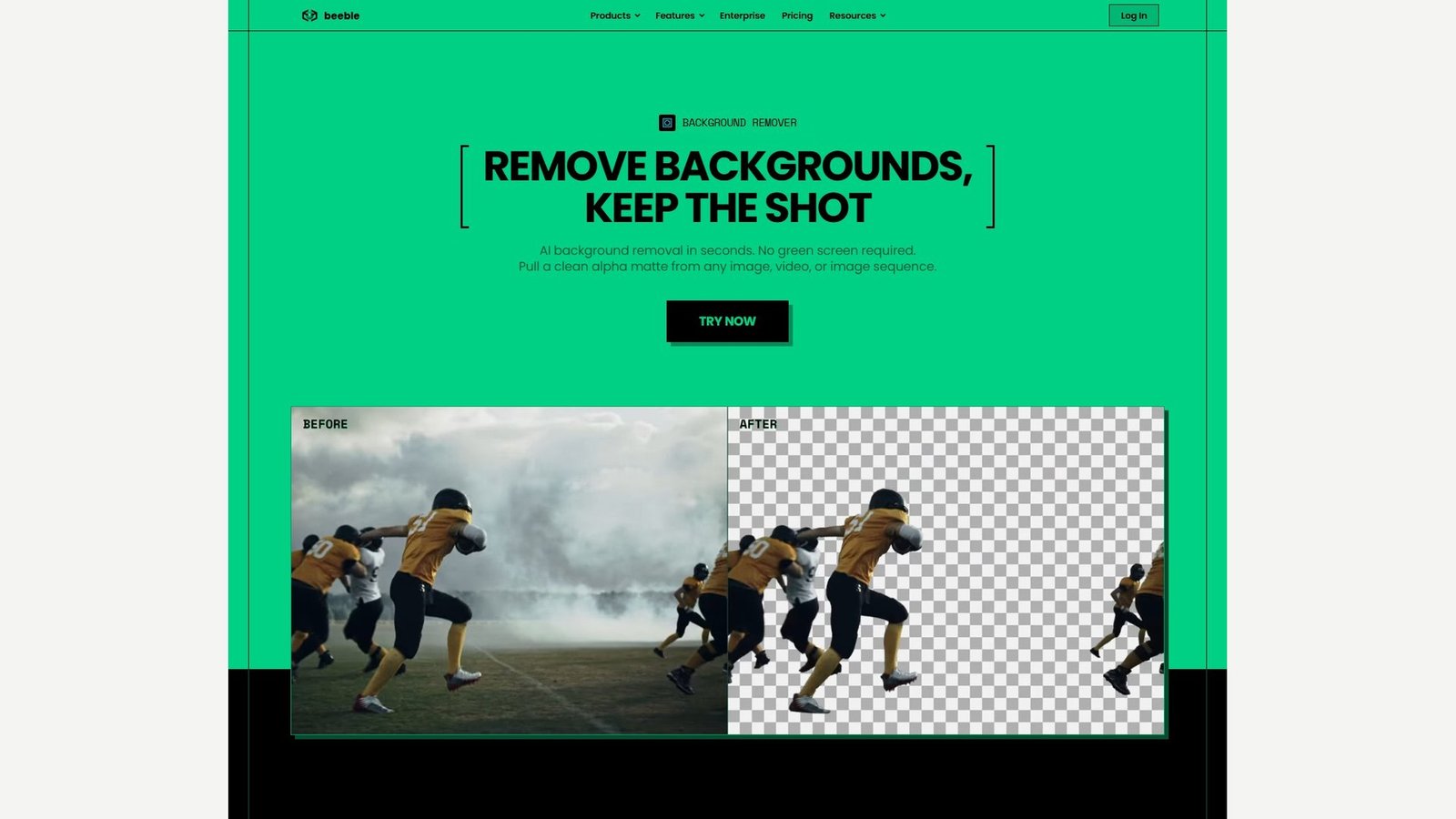
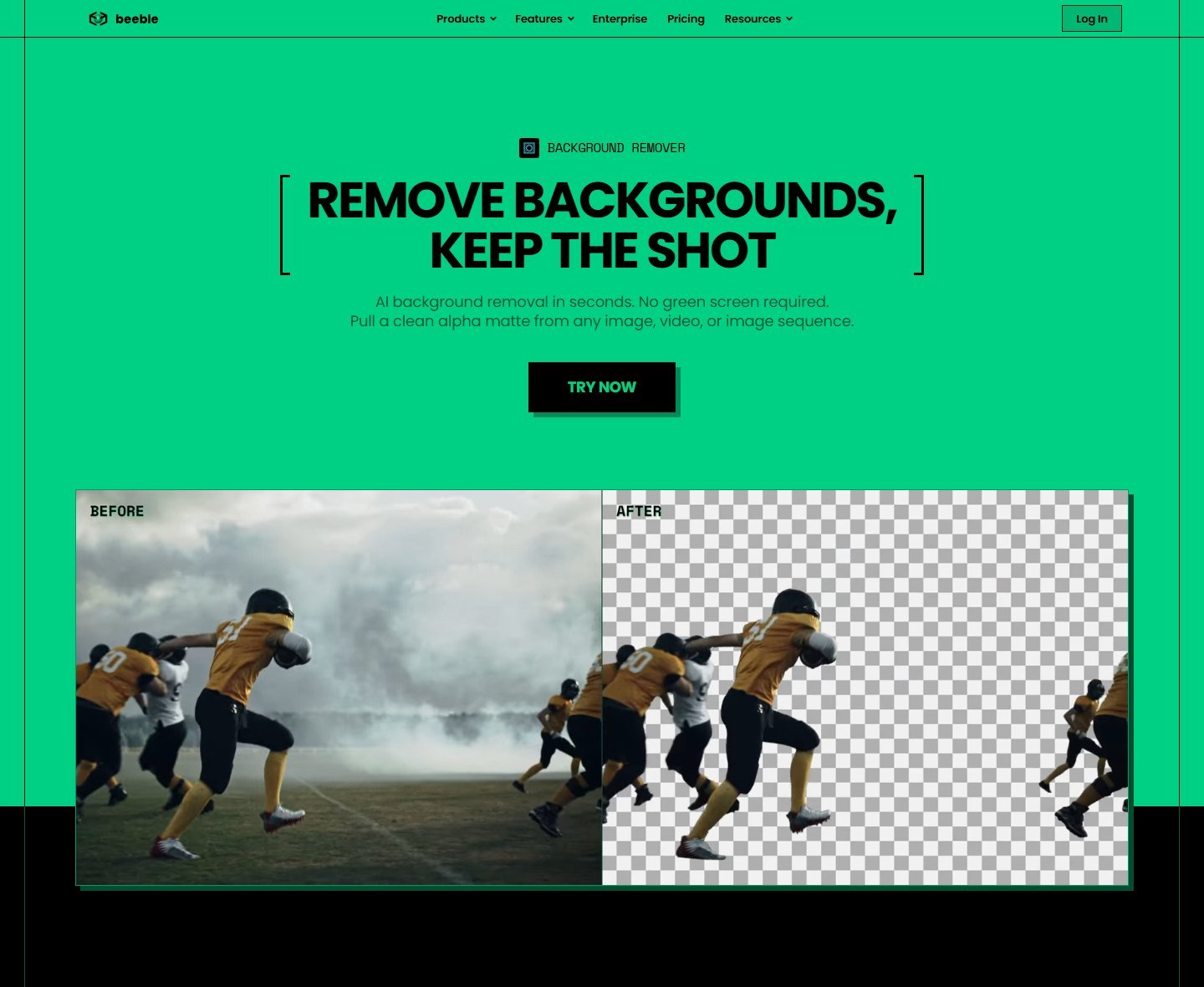
Editors draw a checkerboard where they believe the background is empty. The exported file can still be a flattened H.264 MP4. Transparency in the file requires an alpha channel or an equivalent, such as a PNG sequence with alpha. WebM can carry alpha with the right codec settings. ProRes 4444 can carry alpha. Generic “WebM export” and generic “ProRes export” do not. A single transparent PNG is a still, not a video. Beeble’s page, below, uses a checkerboard in its own After example. Use the picture as a picture of the product page. Use the docs, not the checkerboard, for the export claim.
1. Beeble: Best for a documented alpha matte
Beeble Background Remover runs in Beeble’s cloud app. It is not part of Beeble Studio, the separate desktop license. You upload a video, an image sequence, or a still. Video inputs are MP4 H.264 and MOV in ProRes 422, ProRes 4444, or H.265, up to 2 GB. The docs cap processing at 2K and say larger frames are downscaled, and they cap frame rate at 60 fps and say higher rates are reduced. Image sequences run up to 2,000 frames. Stills are PNG or JPG up to 100 MB.
MatAnyone is the default model and is documented for ordinary footage with no controlled backdrop. CorridorKey is a separate green-screen keyer with spill removal. Beeble says CorridorKey on footage without a green screen can degrade the result. That split is why Beeble qualifies, and why the chroma keyer is not being called the segmentation feature.
A preview keyframe appears first. Edit Alpha lets you mask what to keep. Skip Review processes from frame one. Beeble says cloud GPUs then track the subject. “Subject” means what the mask keeps. There is no separately named person mode or object mode, and no dedicated hair, fur, motion-blur, glass, or occlusion control on the pages checked. Multiple people are not given a success claim.
Downloads are a grayscale matte (MOV, PNG sequence, or a single PNG) and RGBA as an alpha-embedded 10-bit MOV or transparent PNGs, including ZIP batches. The docs say that MOV can drop into After Effects, DaVinci Resolve, or Final Cut. This article does not rename it ProRes 4444. ProRes 4444 is named as an input. WebM alpha is not listed. Original audio was not stated. Replacement and generative backgrounds are other Beeble tools, not this download.
Two limits disagree across Beeble’s own pages. The feature FAQ allows 3,600 frames on Professional and 1,800 on Creator. The docs illustrate 3,600 frames as 60 seconds at 60 fps or 120 seconds at 30 fps on Professional. The pricing table, the same day, lists “1-minute uploads” as a Professional extra. The credit policy charges MatAnyone at 1 credit per 30 frames, and CorridorKey at 2 per 30 frames, and notes that 60 fps costs twice 30 fps of the same duration. The pricing table instead prints “1 credit / sec” and equates 540 credits with 540 seconds. Do not compute one cost per minute until both pages use the same unit. Beeble says the exact cost is shown before a run.
On 5 October 2026 the yearly view showed Creator at $16 per month beside a crossed $19, with 540 credits, and Professional at $60 per month beside a crossed $75, with 2,400 credits. Moon Picke’s arithmetic on those rates is $192 and $720 per year. The page did not print those annual totals. The remover is not on the free plan and not in the individual API. Beeble says it does not train on paid customers’ content. A paid cloud plan includes commercial use, per the pricing FAQ.
Advantage: the matte and the RGBA file are specified, and the no-green-screen model is named apart from the green-screen model. Limitation: the credit unit and the maximum length are inconsistent across Beeble’s pages, and 2K is the documented ceiling. Skip if you need captions in the same project, or a free remover.
2. Fliki: Best one-click option inside a creator project
Disclosure: Moon Picke may earn a commission if you purchase through links on this page, at no additional cost to you.
Fliki’s remover is a browser tool. The feature page says you upload MP4, MOV, or WebM, with a 20 MB cap on the free plan, and that segmentation runs on phone footage, webcams, and stock without a green screen. It also says there is no manual masking. That is a product choice: there is no documented brush repair. The page describes talking heads and product clips. It does not name a person mode and an object mode, and it does not specify multiple people or people entering the frame. “Every frame” is vendor language for temporal behavior, not a lab result.
Replacement is documented: a brand color, a gradient, a still, or an AI-generated scene. The generative scene is optional and is not why Fliki is listed. The page says you can keep transparency and export ProRes 4444 with alpha, WebM with alpha, or a PNG sequence, and that a normal export can be MP4. Those names are Fliki’s documentation. Moon Picke did not open a downloaded file. The page’s sentence about hair, fur, motion blur, and translucent edges is marketing, not a score.
The free plan is 3 credits a month, no card, at 1 credit per minute. Free exports are 720p with a watermark and without commercial rights. Paid plans are described as watermark-free and commercially licensed, with uploads larger than 20 MB. The paid size is not stated. There is no per-clip length cap, while credits cap total minutes. A hero line says up to 4K. The FAQ says free exports are 720p. Original audio was not stated. Paid dollar prices were not copied in this check. The published Fliki AI review covers the broader product, not this cutout.
Advantage: removal, replacement, and the rest of the edit share one project, and the free plan includes the remover. Limitation: no documented mask brush, a 20 MB free upload, and export claims that were not file-checked. Skip if you need frame-level corrections.
3. After Effects: Best for rotoscoping and edge control
After Effects is a local compositor. Adobe’s help page calls Next-Gen Roto Brush the latest version and says you select version 3.0. It describes a newer AI model than Roto Brush 2, aimed at overlapping limbs, hair, and transparencies. Roto Brush 2 remains available and is described as Adobe Sensei tracking. Version 1.0 is still in the dropdown. The default is Next-Gen.
You paint foreground strokes. Alt or Option paints the background. Propagation carries the segmentation, and you can freeze it. Refine Edge is the documented hair control, with motion-blur compensation and edge-color decontamination. That describes a capability, not a guarantee. This is AI-assisted rotoscoping, not a one-click website, and it is not native to Premiere Pro. Keylight remains a separate chroma keyer.
A new background is ordinary compositing. Transparent delivery is real when the output module is RGB+Alpha. A default H.264 render is not that delivery. This article did not re-copy the codec list, so it does not assert ProRes 4444 or WebM from the Roto Brush page alone. Audio stays on the timeline unless you mute it. The Creative Cloud price and the exact hardware sheet were not copied in this check. Adobe’s help index lists current requirement pages, including Apple Silicon. There is no per-clip cloud credit.
Advantage: documented propagate, freeze, hair-oriented Refine Edge, motion blur, and decontamination. Limitation: you have to paint, and a bad propagation still needs repair. Skip if you want a file back from a website in one click.
4. DaVinci Resolve Studio: Best matte inside the edit
Resolve Studio is a local editor and color tool. Blackmagic’s Studio page describes Magic Mask as object isolation and tracking, and the Resolve 20 feature table marks it Studio-only. The free app does not include it. “Object isolation” is Blackmagic’s phrase. This article does not invent a person-only limit. Public discussion of separate person and object modes, including a user report about Magic Mask 2 in Resolve 20, is not the manual, so current mode names stay unverified. What is verified is Studio isolation and tracking, guided by strokes, with alpha in the node graph.
Internal alpha is not a downloaded transparent master. This article does not infer ProRes 4444, WebM alpha, or a PNG sequence from Magic Mask. Confirm the Deliver codec yourself if the file must carry transparency. Replacement and blur are timeline choices after the mask. Chroma key is a separate qualifier. Hair and motion-blur controls specific to Magic Mask were not copied from a manual, so they are not claimed. The Studio buy button showed $295 once on 5 October 2026. Multiple simultaneous subjects are not given an official count. Timeline audio stays unless you mute it. GPU requirements were not re-copied here.
Advantage: the mask feeds the edit and the grade, and the license checked was a one-time purchase rather than a per-frame credit. Limitation: it is not a dedicated transparent-file service, and the free version does not qualify. Skip if you want a browser upload.
5. CapCut: Best for a social cutout and a new background
CapCut’s own create page describes removal for footage that was not shot on a green screen. The path is Smart tools, then Remove background. Auto removal is the AI separation. Chroma key is listed separately. The page says detection can recognize people, animals, and objects, and that you can place another video, an image, a solid color, or a blurred duplicate underneath. Blur is a background choice, not the feature being ranked. Custom removal, restore, and erase are described for missed edges.
CapCut’s own transparent-video article says a project cutout is not automatically an alpha file, and that standard H.264 MP4 is normally flattened. No WebM-alpha, ProRes 4444, or PNG-sequence button was confirmed, so transparent export stays unverified. The documented result is a new background in a normal video. Only the web path was checked. Duration, file size, watermark rules, and the US Pro price were not copied.
Advantage: auto removal and chroma key are separate, and people, animals, and objects are named. Limitation: alpha export and price were not verified, and the apps may differ. Skip if you need a ProRes or WebM master for another compositor.
6. Canva: Best one-click replacement on a design canvas
Canva’s Video Background Remover page says Canva Pro removes a video background in one click, with no green screen. You select the video, choose Background Remover, then add an upload, a stock image, or a template behind the subject. The page says the mask is recreated across the clip. It does not document add and subtract brushes, an object mode, a pet mode, or a multi-person mode. Hair, fur, motion blur, and glass are not given controls. Duration, file size, and resolution were not on the feature text checked here. A transparent-video export was not stated. Canva’s transparent PNG stills are a different feature.
Canva Pro is required. The US dollar price was not copied from Canva’s pricing page, so it is not printed. A Canva price mentioned on Fliki’s page is Fliki’s comparison, not Canva’s price. Commercial rights depend on the plan and on any stock placed behind the subject. Unscreen is history only: Canva’s help center says Unscreen.com closed as of 29 June 2026. Previously exported Unscreen files can still be used. It is not a current subscription.
Advantage: a short one-click path if you already work in Canva. Limitation: no verified alpha export, no documented brush, and no copied price. Skip if the file must composite in another application.
Which tool for which job
Best one-click tool: Fliki. The documented path is upload, automatic segmentation, then a replacement or a named alpha export, without a brush. The free tier is real and narrow. Best professional option and best rotoscoping option: After Effects. Resolve Studio is the better choice when the mask should stay inside a grade you already do. Best documented transparent delivery: Beeble, because the docs name an alpha-embedded 10-bit MOV, transparent PNGs, and a grayscale matte as separate downloads. Fliki also names ProRes 4444, WebM alpha, and a PNG sequence. Neither ranking means a file was inspected.
Best when the subject may not be a person: CapCut names people, animals, and objects. Beeble and After Effects follow a mask you define. Best online specialist: Beeble. Best social path: CapCut. Best beginner replacement: Canva. Best verified budget specialist: Beeble Creator at $19 a month list, or $16 on the yearly view. Best free access: Fliki’s 3-credit, 720p, watermarked, non-commercial plan.
Pricing comparison
Pricing, AI background-removal features, export formats, resolution limits, and usage limits were checked on 5 October 2026 and may change. Check each provider’s current specifications before purchasing.
| Tool | Price checked | Free access | Usage unit | Commercial use |
|---|---|---|---|---|
| Beeble Creator | $19/month list, or $16/month on the yearly view | Remover not included | Docs: 1 credit / 30 frames. Pricing table: 1 credit / second | Paid cloud plan, per Beeble |
| Beeble Professional | $75/month list, or $60/month on the yearly view | No | 2,400 credits; same unit conflict | Paid cloud plan, per Beeble |
| Fliki | Paid dollars not re-copied | 3 credits/month, 720p, watermark, 20 MB, no commercial rights | 1 credit per minute | Paid plans, per Fliki |
| After Effects | Not copied | Trial not re-checked | Local render | Your footage and your Adobe license |
| Resolve Studio | $295 once | Free Resolve lacks Magic Mask | Local | Your footage |
| CapCut | Not verified | Not verified for this feature | Not verified | Not verified |
| Canva | Not copied; Pro required | This remover is not on the free plan | Not stated | Depends on plan and stock |
A 5-minute, 30 fps MatAnyone job is 9,000 frames. Both of Beeble’s published ratios equal 300 credits at 30 fps. They diverge at 60 fps, because one unit is frames and the other is seconds. This arithmetic is Moon Picke’s, not a checkout quote. Fliki would call the same 5 minutes 5 of its own credits. Those units are not the same currency.
How to choose a video background remover
Decide the file before the brand. If the next app must see through the background, short-list Beeble and, with the caveat that the formats are vendor-claimed, Fliki. If the next step is a finished social video, CapCut or Canva can bake the new background in. If the shot is hard, use After Effects. If you already grade in Resolve Studio, start with Magic Mask and confirm the deliver codec before you promise transparency.
Then check the subject. A person, a product, a pet, and a crowd are not one setting. Then check length and file size as separate numbers. Beeble’s 2 GB cap is not its frame cap. Fliki’s 20 MB free cap can reject a short 4K file. Then check the plan. Free, watermark, and commercial rights are three different sentences.
How to remove a video background without a green screen
Use the cleanest source you have. Import it, select the person or object the product lets you select, and run the segmentation. Watch the start, the middle, and the end, including hair, fingers, motion blur, and anything that crosses the subject. Correct the mask where a brush exists. Then replace the background or keep transparency, and export a short test. If alpha matters, open that test in the next editor before you export the full clip.
Beeble is upload, Edit Alpha or Skip Review, then a matte or RGBA download. Fliki is automatic removal, then a replacement or a transparent choice. After Effects is strokes, propagate, Refine Edge, and an RGB+Alpha module. Resolve Studio is a Magic Mask stroke on the timeline. CapCut is Auto removal, not Chroma key, then a background underneath. Canva is Background Remover on a Pro design, then a new image or template.
How to export a video with transparency
Name the codec, not the container alone. Beeble’s documented transparent video is an alpha-embedded 10-bit MOV, with a PNG sequence as the other RGBA option. Fliki’s page names ProRes 4444, WebM with alpha, and a PNG sequence, and it also names ordinary MP4 for a non-transparent export. After Effects is transparent only when the output module includes alpha. Resolve, CapCut, and Canva do not get a transparent-file checkmark here.
Do not treat a standard H.264 MP4 as an alpha master. Unless the product names an alpha-capable codec and setting, assume the MP4 is flattened. WebM support is not WebM alpha. ProRes support is not ProRes 4444. A PNG sequence has transparency only when the frames were written with alpha. One transparent PNG is a still.
When AI background removal struggles
These are properties of the shot, not a score against a brand. Hair, fur, fast motion, motion blur, glass, veils, smoke, mesh, and reflections produce partial pixels. A subject that matches the wall, a dim room, and heavy compression give the model less to see. Overlapping people, a hand across the torso, and someone walking into frame break a mask that was fine on frame one. A one-click result can still be the right first pass. The repair, when the tool allows one, is a brush or a new stroke.
What was considered and left off the list
Unscreen is discontinued as of 29 June 2026 and is not ranked. Premiere Pro is not ranked, because the Roto Brush workflow belongs to After Effects. Runway, VEED, Filmora, Cutout.pro, Kapwing, Descript, Media.io, Adobe Express, and Clipchamp were not given a current first-party removal record in this pass, so they are not used to pad the list. VideoBGRemover and Oeneo appeared in search and were not loaded as complete official records. Image removers, blur-only tools, and chroma-key-only tools were out of scope.
FAQ
What is the best AI video background remover?
For a documented matte and an alpha-embedded MOV, Beeble. For a one-click creator project, Fliki. For edge control, After Effects. “Best” means the documented workflow, not a measured cutout score.
Can AI remove a video background without a green screen?
Yes. That is what these six tools document. A green-screen keyer, where a vendor also offers one, is a separate control.
How do I remove a background from a video?
Import the clip, run the segmentation the product has, inspect the whole duration, repair the mask if you can, then replace the background or export a format with alpha.
Can I export a video with a transparent background?
Only when the product writes an alpha channel or a PNG sequence with alpha. Beeble documents that download. Fliki claims ProRes 4444, WebM alpha, and a PNG sequence. A checkerboard in the editor is not the export.
Can an MP4 have a transparent background?
Not in the ordinary H.264 workflow. The container and the codec are different facts. Unless the editor names an alpha-capable codec and setting, treat the MP4 as a flattened picture. Beeble’s documented transparent file is a 10-bit MOV. Fliki lists MP4 beside its alpha formats, not as the alpha format.
What is the difference between AI removal, chroma key, blur, and replacement?
AI removal estimates the subject in a normal shot. Chroma key removes a color you filmed on purpose. Blur softens the original scene and does not isolate anyone. Replacement puts a new picture behind a subject that has already been isolated. A tool can do more than one. They are still different steps.
Can AI remove a background around objects, not just people?
CapCut’s page says people, animals, and objects. After Effects follows your strokes. Beeble follows the mask you keep. Canva’s page does not document an object mode. A people cutout is not a general object remover unless the vendor says so.
What is the best free AI video background remover?
Fliki’s free plan is the only finalist that includes the remover at no charge: 3 credits a month, 720p, a watermark, a 20 MB upload, and no commercial rights. Beeble, Magic Mask, and Canva’s remover sit behind paid plans.
What is AI rotoscoping, and can it handle hair?
Rotoscoping is creating or correcting a mask over time. After Effects is that workflow: you stroke, propagate, and refine. A one-click button is not the same thing. Refine Edge is Adobe’s documented control for fine detail such as hair, with motion-blur compensation and edge decontamination. Other vendors may show hair in demos. A demo is not a hair score.
Final verdict
Buy the output, not the adjective. Beeble is the best documented path from an existing video to a matte and an alpha-embedded MOV, with a separate green-screen model and a mask check before the full run. Confirm the credit unit and the frame cap at checkout, because Beeble’s own pages do not match. Fliki is the one-click creator tool, with a narrow free plan and named alpha formats this article did not file-test. After Effects is the rotoscoping tool when hair, motion blur, and decontamination need controls. Resolve Studio is the editor to use when the mask should feed a grade. CapCut and Canva are the replacement tools, useful when a new background inside the export is the whole job.
None of these rankings is a same-clip bake-off. Segmentation can fail on hair, glass, blur, and crowds in every one of them. If the file must stay transparent, export a short test and open it in the next application before you process the full video.