
An AI video upscaler takes a video you already have and writes a higher-resolution version. The new file can look cleaner. It does not contain the same captured detail as a camera that shot that resolution in the first place. This guide compares six current tools for that job: Topaz Video, Aiarty Video Enhancer, HitPaw VikPea, DaVinci Resolve Studio, AVCLabs Video Enhancer AI, and TensorPix. Moon Picke did not run one clip through every tool, and this article does not invent PSNR, SSIM, VMAF, face scores, or render speeds.
The reader already has the file. It may be soft, noisy, compressed, interlaced, or simply too small for a 4K timeline. The useful question is which product increases spatial resolution with a learned model, and which extra stages it actually documents: denoise, deblur, faces, old-tape repair, frame interpolation, or stabilization. Exporting a timeline at 3840×2160 is not that product.
Pricing, AI models, hardware requirements, output limits, and cloud-credit policies were checked on 5 October 2026 and may change. Check each provider’s current specifications before purchasing.
Quick picks
- Best specialist desktop set: Topaz Video. The current app, not the retired Topaz Video AI name, documents separate enhancement, denoise, frame-interpolation, stabilization, and SDR-to-HDR controls, plus a 16K output ceiling of 15360×8640.
- Best local license you can keep: Aiarty Video Enhancer. The buy page lists $79 a year or $165 once, with named denoise, deblur, and frame-interpolation models that run on the computer.
- Best guided model list for a first restore: HitPaw VikPea, the product HitPaw renamed from HitPaw Video Enhancer on 29 October 2024. Free use is a preview. Export needs a paid license.
- Best if the upscale has to stay inside the edit: DaVinci Resolve Studio Super Scale. The free app does not include it. Blackmagic’s Resolve 20 notes add 3x Enhanced and 4x Enhanced modes with sharpness and noise-reduction controls.
- Best simple monthly desktop plan we could price cleanly: AVCLabs Video Enhancer AI at $39.95 a month, with an 8K super-resolution line on the suite page.
- Best when the computer has no serious GPU: TensorPix, a browser tool. On the annual view, Standard is $5.50 a month, and the free plan limits enhancement input to 720p.
Comparison table
| Tool | Best for | Max output named | Denoise | Frame interpolation | Processing | Starting price |
|---|---|---|---|---|---|---|
| Topaz Video | Separate models for scale, noise, and motion | 15360×8640 in the app | Yes. Nyx is documented as a denoise model | Yes. Chronos, Apollo, and Aion are frame-interpolation choices | Local, with cloud rendering | $59 a month, or $299 a year |
| Aiarty Video Enhancer | A kept local license | 4K targets on the model cards | Yes, as its own control | Yes. New frames, including slow motion | Local | $79 a year, or $165 once |
| HitPaw VikPea | Named models, including portraits and colorize | 4K/8K on the product page | Yes. A professional denoise model is listed | Yes, on the paid feature list | Local, with a cloud-render option | Free preview. Paid checkout varies |
| Resolve Studio | Upscale inside the finish | Not a separate upscaler cap | Noise reduction inside Enhanced Super Scale. UltraNR is a separate Studio tool | Not the Super Scale feature. Speed Warp is a different Studio tool | Local | Studio button $295 once |
| AVCLabs Video Enhancer AI | A monthly desktop enhancer | Up to 8K on the suite page | Yes. Noise reduction is listed | Not on the pages used here | Local app. A separate cloud product exists | $39.95 a month |
| TensorPix | No local GPU | Paid plans accept input up to 4K | Not isolated as its own named filter on the pricing page | Not isolated on the pricing page | Cloud | Free plan. Standard $5.50 a month billed annually |
How we chose the best AI video upscalers
US results for “best AI video upscalers,” “AI video enhancer,” and “upscale video to 4K AI” are comparison pages about improving a file you already have. General editors, image upscalers, and generative video tools sit beside them. The intent that matches this article is narrower: raise the spatial resolution of existing footage with a learned model, and say clearly when denoise, deblur, or new frames are a different control.
A finalist had to enhance an existing video, not merely export 4K, resize with a conventional filter, or sharpen. A caption tool, an avatar studio, and a prompt-to-video generator did not qualify. New clips from a prompt belong with AI video generators. Cutting a timeline is an editing job. This page ranks the enhancement path. Premiere Pro was considered and left out: a 4K sequence export is not AI upscaling. CapCut and Filmora were left out for the same reason. VideoProc, Pixop, and developer upscaler APIs were considered and not ranked, because this pass did not isolate a current self-serve feature page clear enough to price and describe without guessing. No affiliate product was added to fill a slot.
What is AI video upscaling?
A low-resolution frame holds a limited number of samples of the scene. An upscaler builds a larger frame. Traditional resizing, such as bilinear, bicubic, or Lanczos, calculates the new pixels from neighboring samples with a fixed formula. AI upscaling uses a model trained on many images or videos to estimate structure that the formula would only blur. For video, some models also look across frames so the result does not shimmer from one frame to the next. Topaz’s enhancement notes talk about chaining models. Aiarty names diffusion and GAN architectures on its model cards. Those are different methods. Neither one recovers a measurement the camera never stored.
Watch the scale language. A move from 1920×1080 to 3840×2160 doubles the width and doubles the height. The frame then has four times as many pixels. Calling that “4× resolution” without saying which axis you mean mixes the two. Blackmagic’s “4x Enhanced” Super Scale mode is a named mode in the Resolve 20 notes. This article does not convert that label into a pixel-count claim the notes do not spell out. Topaz’s 16K ceiling is an output limit of 15360×8640, not a statement that the result matches a native 16K camera negative.
Upscaler, enhancer, restoration, interpolation
Upscaling changes spatial resolution: more pixels in each frame. Enhancement is the wider kit. It can include denoise, deblocking, deblur, sharpening, face processing, color, stabilization, and new frames. Restoration is wider still. Scratches, dust, flicker, torn frames, and faded color are not solved by a scale factor. Colorization of a black-and-white shot, which HitPaw lists, is an inference about color. It is not a historical record of the original dyes.
Frame interpolation changes temporal resolution: more frames per second. Topaz’s presets turn on a Frame Interpolation filter and name Chronos, Chronos Fast, Apollo, Apollo Fast, and Aion. Apollo is the model the slow-motion guide recommends above 4×, including an 8× example that generates the in-between frames rather than only playing the file slower. Aiarty says its interpolation module generates new frames for 60 fps, 120 fps, or higher, and for 8× or 16× slow motion. HitPaw lists frame interpolation and slow motion as separate paid tools, and its FAQ says a 24 fps file can be taken to 60 or 120 fps. Playing a clip at half speed, or repeating each frame, is not that process. Resolve’s Speed Warp is a separate Studio tool from Super Scale. This article does not treat Speed Warp as the same feature as Super Scale.
What AI cannot recover
If the source never captured a detail, the model does not know the ground-truth version of it. It can infer a plausible one. Tiny text, distant faces, license plates, logos, product labels, and fine UI type are the usual casualties. A very small face may not contain enough information to reconstruct that person’s actual features. A portrait model can still draw a convincing face. That result is not an identity match, and it is not evidence. The same caution applies to archival and documentary footage, and to product videos where a label, port, or weave might be rewritten into something that looks sharper and is wrong.
Denoise is not detail recovery. Aggressive noise removal can erase grain and fine texture along with the noise. Sharpening is not deblur. A sharpen filter boosts edges that are already there. A deblur model tries to estimate a sharper structure. Aiarty lists denoise, deblur, and sharpen as separate roles on its model cards. Topaz’s Nyx page describes denoise, and a later note says Nyx XL is tuned for sharpening and denoising. Those are not the same sentence as “the original detail is back.”
1. Topaz Video: best when the models are separate controls
Topaz made the list because the current app documents enhancement as a set of filters, not as a single “make it 4K” button. The product people still call Topaz Video AI is the older name. Docs still contain video-ai URLs. The app on the pricing and requirements pages is Topaz Video. The pricing FAQ says Personal is $59 a month with no commitment, $39 a month on an annual commitment billed monthly, or $299 billed annually. Pro is $74 a month on an annual commitment billed monthly, or $699 a year. A Studio bundle starts at $399 a year. Personal includes unlimited local rendering. Offer text on the site also includes 25 monthly video cloud credits. A note on the pricing page limits personal and commercial use to organizations under $1 million in annual revenue. Cloud credits are a second meter. A monthly pack of 80 credits is $9.99. One-time packs start at 20 credits for $5. Credit use depends on input resolution, output resolution, frame rate, length, and model. There is no single price per minute.
The enhancement guide names Proteus as a general model that can reduce noise and can deinterlace. Nyx is a denoise model for higher-resolution footage, at 1× to avoid extra scaling or at 2× to scale and denoise together. Nyx XL is described as a sharpen-and-denoise variant. Iris, Rhea, Artemis, Gaia, and Theia are the other core progressive models on that page. Rhea XL is named on the pricing list and is not available for cloud rendering. Starlight is a separate, heavier family. Starlight Mini can run locally from app version 1.7.0 without a Pro account, if the machine meets the Starlight requirements. The Astra comparison says other Starlight models need cloud rendering on a Personal license, except Starlight Precise 2.5, or whenever the computer misses the Starlight minimum. Starlight Sharp’s cloud path is limited to 1080p output and does not support 4K. Cloud Starlight jobs are limited to 9,000 frames, about five minutes at 30 fps or about two and a half minutes at 60 fps. Those frame estimates are the documentation’s, not a speed test.
Presets show what “upscale” means in practice. One uses Proteus to 3840×2160. Another uses Proteus to 1920×1080. A denoise preset uses Nyx. A 4K-and-60-fps preset combines an enhancement model with a frame-interpolation model. The slow-motion guide tells you to enable Frame Interpolation, pick Apollo, and choose 8×. That is new frames, not a playback-speed trick. Stabilization and SDR to HDR are named on the pricing model list as their own items. Motion Deblur appears in the second-pass notes as its own added cost in compute, separate from enhancement. The app’s output ceiling is 15360×8640. A larger encoder maximum does not override that.
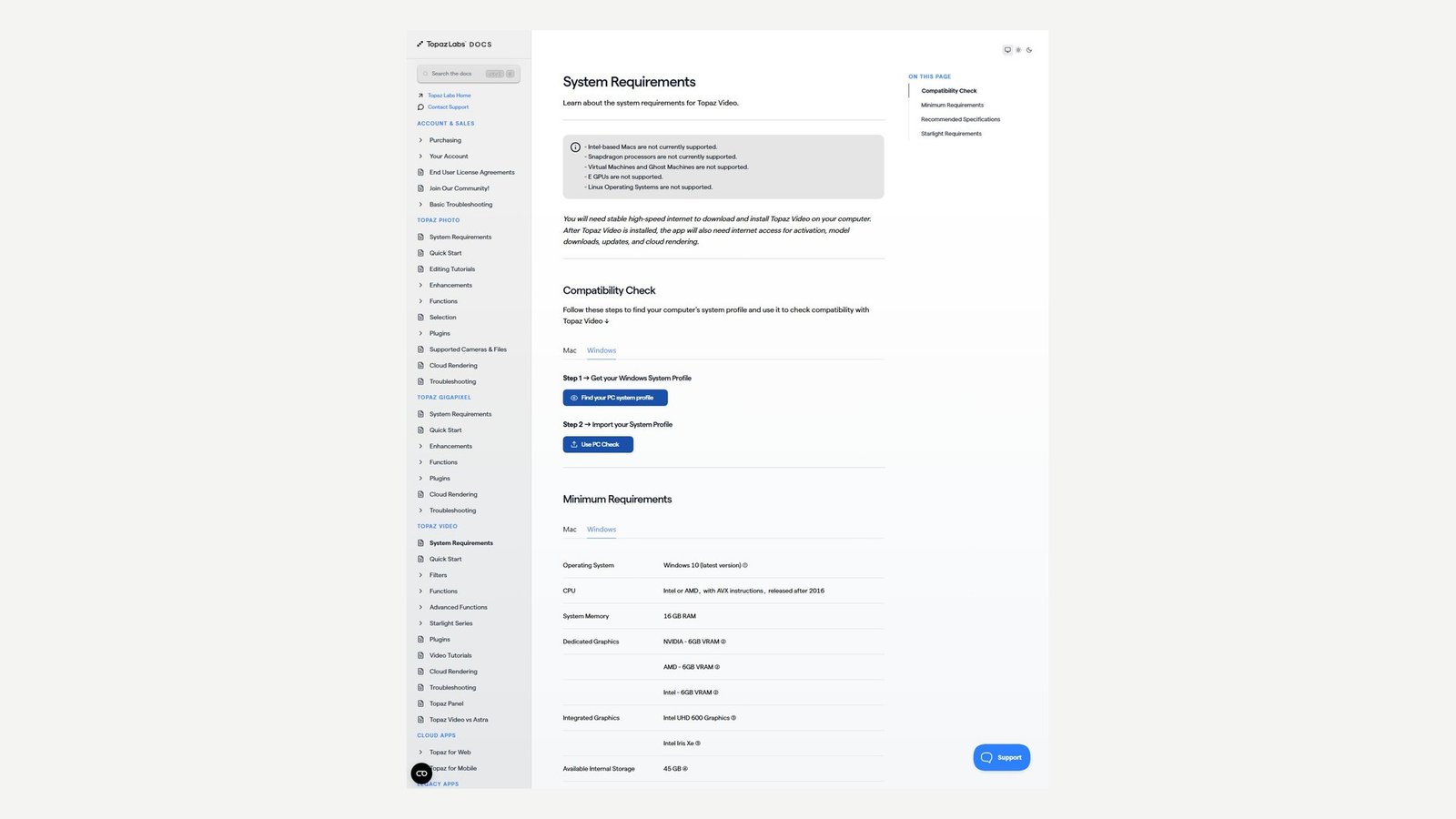
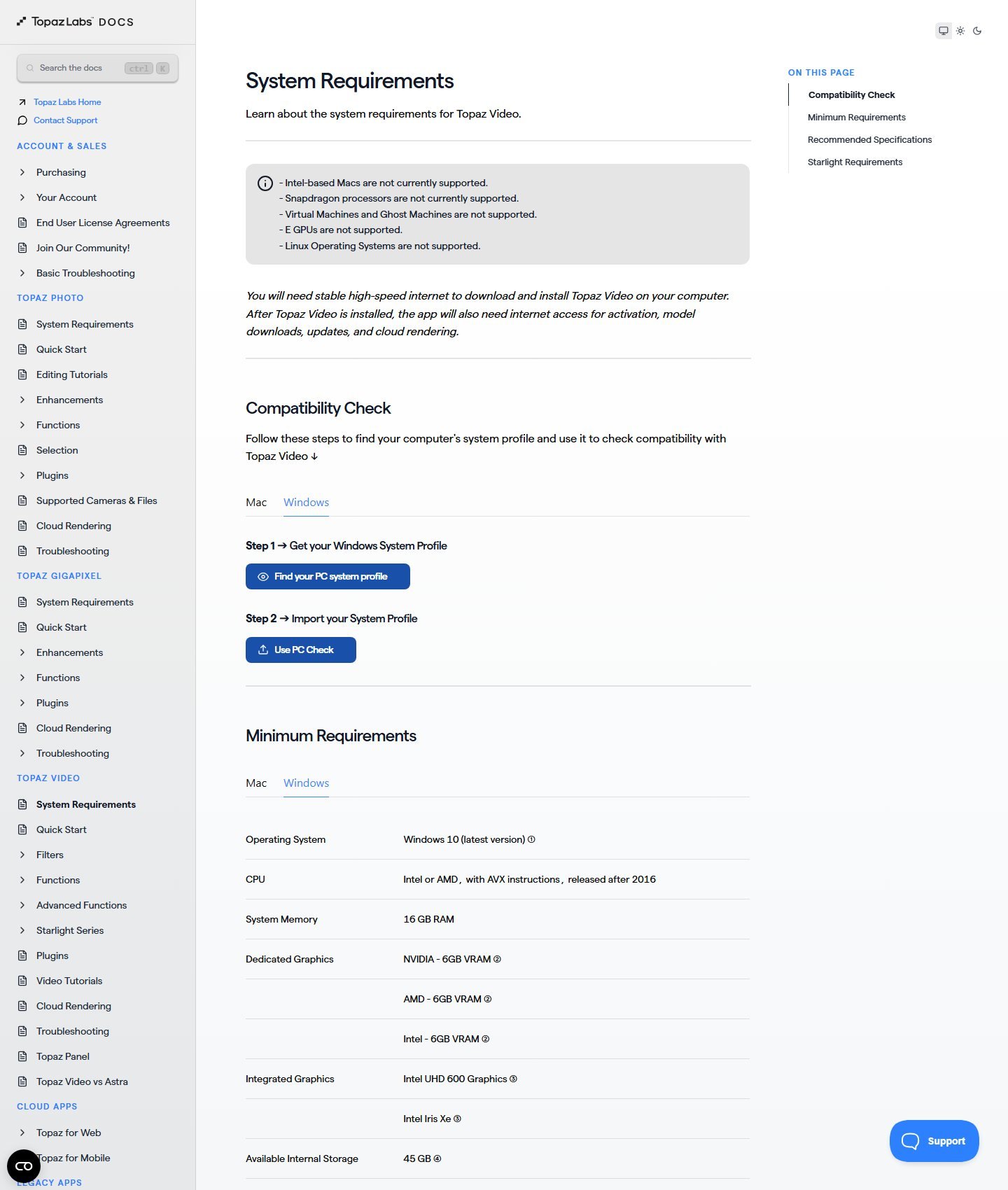
Minimum Mac is macOS 13, an M-series chip, 16 GB of RAM, and 45 GB of storage. Intel Macs are unsupported. Minimum Windows is Windows 10, a post-2016 CPU with AVX, 16 GB of RAM, and 6 GB of VRAM. Recommended Windows is Windows 11, a post-2020 CPU, an RTX 30-series or newer, a Radeon 5000-series or newer, or an Arc A770 or newer, with 8 GB of VRAM and 32 GB of RAM. Starlight Mini wants more: 32 GB of RAM and, on NVIDIA, compute capability 7 or higher with at least 10 GB of VRAM. AMD local Starlight Mini wants 20 GB of VRAM. Linux, virtual machines, and eGPUs are unsupported. The app still needs internet for activation, model downloads, and cloud jobs.
Best for: a desktop workflow that needs denoise, scale, interpolation, and stabilization as separate, documented controls.
Skip if: you want a one-time license, a weak GPU, or a five-minute Starlight cloud job that is longer than 9,000 frames.
2. Aiarty Video Enhancer: best when the license stays on the machine
Aiarty is a local Windows and Mac enhancer. The product page says Windows 10 or later and macOS 13 or later, including Intel and Apple Silicon. It names three models. moDetail-HQ v3 is a diffusion-plus-GAN model for hair, skin, plants, and texture, with scale options of 1×, 2×, 4×, and direct 1K, 2K, or 4K targets. Smooth-HQ v3 is described as the more faithful restoration model, with the same scale list. superVideo vHQ is the low-light and heavy-grain model, and the card shown lists 2× rather than the full scale set. Each card separates overall clarity, denoise, deblur, sharpen or detail, and smoothness. That split matters. Turning up sharpen is not the same control as deblur, and denoise can remove texture you wanted to keep.
Frame interpolation is explicit. The page says the module generates new frames for 60 fps, 120 fps, or higher, and that 8× or 16× slow motion uses those generated frames. A Force Deinterlace control is listed next to crop, rotate, and trim. SDR-to-HDR is marked experimental: 8-bit SDR to 10-bit HDR, with Neutral, Bright, and Graded modes and a strength slider. That is a vendor HDR conversion, not a Dolby Vision certification, and it still needs a display that can show it. Audio denoise is a separate module and is not part of the picture upscale.
The free version can try the core features, including upscale, deblur, denoise, and interpolation, on files under 120 seconds, with no signup. The full license removes the watermark, allows any length, and turns on batch export. The buy page, with yearly billing selected, showed $79, reduced from $99, renewing annually. The one-time license showed $165, reduced from $235, and the page says lifetime updates are included. A 30-day money-back line is on the product page. The same page prints a speed example: a 25-minute 2K, 30 fps clip to 4K in 25 minutes on an RTX 5090 with Turbo on. That is Aiarty’s example. It is not a Moon Picke measurement, and it is not a reason to rank Aiarty faster than anyone else.
The page also says the models “generate more details” and “restore” skin and fur. Read that as inference. A sharper hair edge can be plausible and still not be the strand that was in the room. Strength is a slider for that reason. Lower strength stays closer to the source. Higher strength asks the model to invent more texture.
Best for: a creator who wants local processing, a kept license, and separate denoise, deblur, and new-frame controls.
Skip if: you need Topaz’s longer model list, or your clips are long and you only have the 120-second free limit.
3. HitPaw VikPea: best when you want a named model and a preview
HitPaw Video Enhancer was renamed HitPaw VikPea on 29 October 2024. The current product page sells 4K and 8K upscaling, noise reduction, blur repair, old-video repair, stabilization, and frame interpolation. The paid Mac comparison lists General Restoration, UHD Restoration, Video Quality Repair, an AI Generative model, HD Sharpen, Fast Sharpen, Animation, Portrait Restoration, Portrait Generation, Professional Decompression, Professional Denoise, Professional Sharpen, SDR to HDR, Colorize, Color Enhancement, Low-Light Enhancement, frame interpolation, stabilization, and slow motion. Sharpen models and denoise models are different rows. Portrait Generation is not the same as a measurement of the original face. Colorize is not a record of the original colors. The page’s line about recovering lost details is HitPaw’s marketing. It is not a ground-truth claim.
The body text says 15 or 30 fps can go to 60 fps. The FAQ says 24 fps can go to 60 or 120. Both lines are official, so they are not merged into one maximum. Stabilization is its own model. Background removal and the AI video generator are not why VikPea is here. Batch and a cloud render are claimed. Example GPU times on the page are not a speed ranking.
Minimum Windows is Windows 10 or 11, an Intel i3 or AMD RX 580 or higher, 8 GB of RAM, and 4 GB of disk. Recommended Windows is an i5 or Ryzen 5 and 16 GB of RAM. Minimum Mac is macOS 13, an M-series processor, 8 GB of RAM, and 4 GB of disk. Recommended Mac is an M-series Pro, Max, or Ultra and 16 GB of RAM. The free license previews and does not export. The Windows checkout was running an extra 20 percent off and showed several dollar amounts at once, including $43.19, $81.24, and $284.69 beside higher struck prices. The Mac page listed a one-time price of $349.99. Promotions move those numbers. Use the live cart rather than a copied discount.
Best for: a first restore where you want a portrait, animation, or colorize model and you can judge it in the preview before you pay.
Skip if: you need a published, stable monthly price, or you need the enhanced face to be treated as the original person.
4. DaVinci Resolve Studio: best when Super Scale stays in the timeline
Resolve is an editor, a color tool, and a finishing tool. It is on this list only for Super Scale. Blackmagic’s Resolve 20 new-features notes, Studio only, add AI Super Scale 3x Enhanced and 4x Enhanced. Those modes expose Sharpness and Noise Reduction as values, not only as low, medium, and high. The same note says Super Scale is one of the most computationally heavy tools in the application and suggests proxies or optimized media when many clips use it. The free Resolve download does not include Super Scale. A 4K timeline in the free app can still resize a clip. That resize is not this feature.
The Studio feature comparison lists other Neural Engine tools beside Super Scale, and they should stay beside it. Neural Engine deinterlacing is Studio. Motion Deblur is Studio. UltraNR noise reduction is Studio. Speed Warp is Studio. Gyroscopic stabilization is listed more broadly than Super Scale. None of those checkboxes turns the free app into an upscaler. The Studio buy button on Blackmagic’s Resolve page was $295 once when that page was checked on 5 October 2026 for the editing guide. That figure is a one-time purchase on the button, not a monthly price.
Resolve does not publish a specialist model menu comparable to Topaz’s Proteus, Nyx, and Apollo list. If the job is “fit an HD clip into a 4K timeline with a documented enhanced scale mode,” Studio is the relevant tool. If the job is a stack of denoise, deinterlace, interpolation, and a second pass, the dedicated apps document those stages more directly.
Best for: an editor who already finishes in Resolve and needs Studio Super Scale on selected clips.
Skip if: you are on the free app, or you wanted a standalone enhancement studio.
5. AVCLabs Video Enhancer AI: best when the plan is a plain monthly app
AVCLabs sells Video Enhancer AI as desktop software for Windows and Mac. The store card is $39.95 a month and describes AI upscaling, noise reduction, object removal, and color enhancement. The suite page is more specific about the video half: AI super-resolution up to 8K, intelligent noise reduction, automatic color correction and HDR enhancement, stabilization, batch processing, and major video formats. It also lists blurring objects for privacy. Blur is not upscaling. HDR enhancement on that page is not documented as HDR10 or Dolby Vision, so this article does not upgrade the words. Yearly and lifetime options are mentioned. A clean yearly price for the video app alone did not separate itself from the photo bundle on the page we used, so it is not printed here.
A separate product, Video Enhancer Cloud, is listed for upscaling without a powerful local GPU. This article does not fold that cloud product’s limits into the $39.95 desktop price. Face refinement, deinterlace, and frame interpolation were not on the store or suite copy used here, so they are not claimed. “Up to 8K” is an output line. It does not mean an 8K source’s captured detail.
Best for: a straightforward monthly desktop enhancer when the documented needs are scale, noise, color, and stabilization.
Skip if: you need a published interpolation model or a hardware table as specific as Topaz’s.
6. TensorPix: best when the GPU stays in someone else’s rack
TensorPix enhances video in the browser. The annual pricing view shows Free at $0, Standard at $5.50 a month billed annually, Premium at $12.42, and Elite at $30.25. Free enhancement input stops at 720p. Paid plans accept input up to 4K. Export codecs listed are H.264 and H.265. You can stack up to four AI filters on Free and Standard, and up to five on Premium and Elite. Concurrent jobs are 1, 3, 5, and 7. The free plan stores 1 GB and deletes files 30 days after creation. Paid storage is 10 GB, 100 GB, and 500 GB, kept until you delete them. The API appears on Premium and Elite. Queues are marked slow, standard, and fast. There is no on-premise install. The help center says a free preview can render a short watermarked sample.
Credits are the meter, and they are not Topaz credits. The pricing table says one credit roughly equals two minutes of enhanced video, or a different count of generated images. The FAQ then says the real cost depends on resolution, frame rate, and duration, and that the app shows the deduction before you run the job. Unused credits roll for up to a year. Extra credits cost $3 on Free, $1.50 on Standard, $1.20 on Premium, and $0.80 on Elite. A TensorPix credit is not an Aiarty export and not a Topaz cloud credit. Testimonials on the page that compare TensorPix with other software are not a cross-product test.
Best for: a short job on a laptop that cannot meet a 6 GB or 10 GB VRAM line.
Skip if: the file is above the plan’s input resolution, you cannot upload the footage, or you need the long model notes a desktop app publishes.
Local software and cloud jobs
Local apps keep the file on the machine after installation. Topaz, Aiarty, VikPea, Resolve, and AVCLabs are in that group, with cloud as an option on Topaz and as a claimed accelerator on VikPea. TensorPix is cloud-only. Local work avoids an upload of a long master and lets you queue overnight. It also demands VRAM, RAM, disk, and time, and Topaz still wants a network connection for licenses and model downloads. Cloud work starts faster on a weak computer and adds file-size, duration, credit, and retention limits. TensorPix’s free files expire after 30 days. That is a storage rule, not a privacy audit. This article does not grade vendors’ security beyond what those pages state.
Pricing without a fake cost per minute
Desktop apps on this list do not sell a clean “dollars per enhanced minute,” because the render happens on your hardware. Topaz’s local renders are included in the subscription. Its cloud renders are not, and the docs refuse a fixed cost per video. Aiarty’s $79 yearly and $165 lifetime prices are license prices, not a per-minute rate. Resolve Studio’s $295 is a one-time app purchase that includes Super Scale among many other Studio tools. AVCLabs’ $39.95 is a monthly app price. TensorPix is the only finalist with a credit approximation on the plan card, and even that card tells you the calculator is the real price. A second export after you change strength or model spends the time, and on TensorPix or Topaz cloud it can spend credits again.
None of these products gives you rights to footage you do not already have the right to enhance. Output terms were not a blanket “you own every pixel” on the pages used here. Personal Topaz use is limited, on the pricing note, to organizations under $1 million in annual revenue. Read the current license if the work is client delivery.
How to choose an AI video upscaler
Start with the defect, not the logo. If the frame is simply small and the picture is otherwise clean, a 2× scale may be enough. Doubling 1920×1080 lands on 3840×2160. Going further asks the model to invent more. If the problem is noise, pick a denoise model and look at texture before you scale. If the problem is interlaced video from a DVD, DV tape, or old broadcast, use a deinterlace control where the product has one: Proteus or the older Dione presets in Topaz, Force Deinterlace in Aiarty, Neural Engine deinterlacing in Resolve Studio. If the problem is stutter, add interpolation only after the picture is acceptable. If the problem is shake, stabilization is its own pass and can crop the frame.
Then match the computer. A minimum spec is not a 4K recommendation. Topaz’s own page separates them, and Starlight sits above the recommended line. If the machine fails that line, TensorPix or a cloud render is the relevant path, with the credit and duration limits attached. If you already live in Resolve, try Studio Super Scale on a short range before you buy a second application.
How to upscale a video with AI
- Keep the original file. Enhancement does not replace it.
- Read the source resolution and frame rate from the file, not from the filename.
- Note noise, blocking, interlacing, and blur before you pick a model.
- Choose a target you will actually deliver. A 720p clip does not need an 8K master by default.
- Prefer the smallest scale that fills the screen.
- Select the model that matches the defect. Do not stack every filter on the first pass.
- Render a short preview.
- Inspect it at 100 percent, not as a tiny thumbnail.
- Check faces. A prettier face can be a different face.
- Check text, logos, and labels.
- Check edges that move, including hands and fine patterns.
- Check grain. Heavy denoise can look waxy.
- Step through frames and look for flicker.
- Add frame interpolation only if the motion needs it.
- Pick a codec and bitrate that do not throw the new detail away. H.264 and H.265 are the codecs TensorPix lists. Topaz’s format guide is the reference for its own exports, including its frame-rate limits by encoder.
- Export a short test, then the full file.
- Watch the full result once before you delete any intermediate.
When enhancement can look worse
Models can oversharpen, draw halos, invent texture, smear fine patterns, or change a logo. Faces can go waxy. Text can change. Frame interpolation can warp fast motion, occlusions, transparent objects, particles, and cuts. Heavy denoise can remove the grain that made footage look like film. None of those failure types is a measured rate for a named product in this article. They are the reason the preview exists. Vendor demos show a selected source at selected settings. They do not prove one tool recovered more real detail than another.
FAQ
What is the best AI video upscaler?
For a desktop job with separate, documented controls for scale, denoise, interpolation, and stabilization, Topaz Video is the most complete match on this list. Aiarty is the closer match when you want a local license you keep. TensorPix is the closer match when you have no GPU. “Best” here means documented workflow fit, not a quality score.
Can AI upscale video to 4K?
Yes. Several tools can write a 3840×2160 file from a smaller source. Topaz presets name that target. Aiarty model cards include a 4K target. AVCLabs advertises up to 8K. The file is a 4K-sized frame. It does not contain the captured detail of footage that was recorded natively at 4K. The model infers plausible detail from what the source still holds.
Can AI turn 720p into 4K?
1280×720 to 3840×2160 is three times the width and three times the height, which is nine times the pixel count. Some tools offer a 4× linear mode, which is larger than that jump, and some offer a direct 4K target. Either way, the extra pixels are estimated. Preview faces and small text before you process the whole file.
Does AI upscaling create fake detail?
It creates inferred detail. That can make a soft frame look clearer, and it can also invent an edge, a letter, or a facial feature that was not resolved in the source. Use the result as a viewing master. Do not use it as proof of a plate, a label, or a person’s identity.
Can AI restore old videos?
It can help with some old-video problems: low resolution, noise, interlacing, and unstable frame rate, where the product documents those tools. HitPaw and Topaz both describe restoration-style models. That is not a full film restoration. Scratches, dust, and damaged frames are a different job, and colorization is an inference.
Can AI fix blurry video?
Aiarty documents a deblur role separately from sharpen. Topaz documents Motion Deblur as its own process in the second-pass notes. A sharpen slider is not that process. Neither one can reliably rebuild detail the lens never resolved.
What is the difference between AI upscaling and frame interpolation?
Upscaling adds pixels inside each frame. Interpolation adds frames between the frames you have, which raises the frame rate or supports slow motion. Topaz, Aiarty, and VikPea document both. Resolve Super Scale is the spatial tool. Speed Warp is a different Studio feature.
Does AI upscaling need a powerful GPU?
Local specialist models often do. Topaz’s minimum dedicated GPU is 6 GB of VRAM, and Starlight asks for more. Aiarty and VikPea also publish minimum RAM and CPU lines. TensorPix moves the work to its servers, and you pay in credits and upload limits instead. This article does not estimate minutes per GPU.
What is the best free AI video upscaler?
Among the tools here, nothing is a full-length, watermark-free upscaler at no cost. Aiarty’s free mode is limited to clips under 120 seconds. VikPea’s free mode previews and does not export. TensorPix’s free plan caps enhancement input at 720p and deletes files after 30 days. Resolve’s free app does not include Super Scale. A short test on one of those limits is the honest free path.
Final verdict
Choose Topaz Video when you need the documented split between Proteus-style enhancement, Nyx denoise, Apollo or Chronos interpolation, stabilization, and a hardware page that tells you the minimum is not the Starlight recommendation. Choose Aiarty when a local $79 yearly or $165 lifetime license, with separate deblur and new-frame controls, matches the job. Choose VikPea when a named portrait, animation, or colorize model and a preview-before-export flow is the point, and recheck the discounted cart. Choose Resolve Studio when the clip is already in a timeline and Super Scale is enough. Choose AVCLabs when a $39.95 monthly desktop app is the budget shape and you only need the features that page lists. Choose TensorPix when the computer cannot run the model and a cloud credit, with a shown price before you start, is acceptable.
Keep the original. Preview at full size. Treat every new pixel as an inference, not as a fact the camera recorded.